active directory · recovery
Active Directory: recovering deleted objects with Restore-ADObject
You’re going to panic when something important is accidentally deleted. It’s scary. In the old days it was a little painful as well. Deleted objects had their links stripped (memberships), and getting everything back could mean going to the last backup. Tombstone reanimation was a cool thing to say though.
Thankfully, it’s much easier if Recycle Bin was enabled before the deletion. Turning it on afterwards won’t bring back the attributes already stripped from an old tombstone. Microsoft’s Recycle Bin documentation covers that distinction.
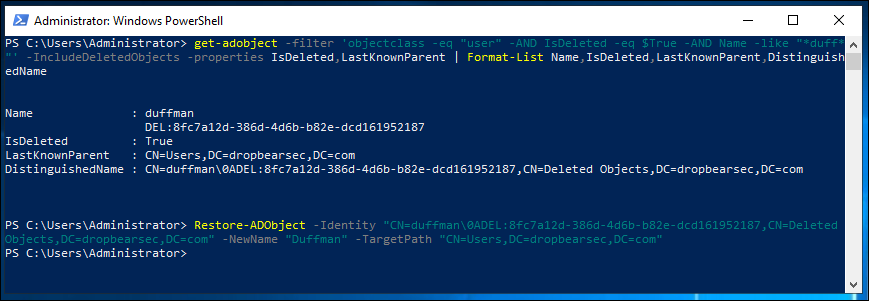
First, find the thing you broke:
Get-ADObject `
    -Filter 'ObjectClass -eq "user" -and IsDeleted -eq $true -and Name -like "*chad*"' `
    -IncludeDeletedObjects `
    -Properties IsDeleted, IsRecycled, LastKnownParent, sAMAccountName |
    Format-List Name, sAMAccountName, IsDeleted, IsRecycled, LastKnownParent, ObjectGUID, DistinguishedName
Here we are saying: find deleted user objects with a name something like chad.
When it appears that your search has failed, think a little harder about what you’re searching for. You might stress when cduff, the user’s login name, finds nothing. But we’ve asked for Name in this example. That’s a different attribute from sAMAccountName. It sounds simple, but it’s an easy way to waste time when the pressure is on.
The deleted object’s distinguished name will include \0ADEL: and its GUID. Copy that whole DN, or use the ObjectGUID; Restore-ADObject accepts either. The old DN no longer identifies the deleted object.
Second, recover the thing:
Restore-ADObject `
    -Identity "CN=chadduffey\0ADEL:549111ab-f6f0-423a-8915-9231323eaaf8,CN=Deleted Objects,DC=DropbearSec,DC=com" `
    -NewName "Chad Duffey" `
    -TargetPath "CN=Users,DC=DropbearSec,DC=com" `
    -PassThru
Use the DN returned by your search; the value above is an example. -NewName sets the object’s name, not its displayName or login name. -TargetPath is where it goes. If you omit them, the cmdlet uses msDS-lastKnownRDN and lastKnownParent. The cmdlet reference has examples for restoring by GUID too.
If the parent OU was also deleted, restore it first or choose a container that exists. An object with IsRecycled set to true has gone past the stage where Recycle Bin can restore it with everything intact.
Then, check the result. The new name doesn’t change the account’s sAMAccountName, so using the GUID from the search avoids another round of guessing:
Get-ADUser -Identity "549111ab-f6f0-423a-8915-9231323eaaf8" -Properties MemberOf |
    Select-Object Name, SamAccountName, Enabled, DistinguishedName, MemberOf
Check its OU, account state and group memberships, then allow for replication before chasing a failure on a different DC. If deletion kicked off a cleanup job in another system, restoring AD won’t undo that job for you.
That’s it! Good luck :)
Example