azure
Infrastructure Notes - Azure Storage Overview
Working through Azure Storage: what gets created with a storage account, how to move files around, and how to give someone access without handing over the account key. The portal screenshots are from the 2020 lab; the authentication options have expanded since then.
Basics
Microsoft’s cloud storage solution. ‘Massively’ scalable object store:
- data objects
- file system service for the cloud
- messaging store for reliable messaging
- NoSQL store
All data written to Azure Storage is encrypted by the service.
The REST APIs use HTTP/HTTPS; use HTTPS for these examples. Azure Files also supports file-sharing protocols such as SMB, so not every storage connection is an HTTP request.
API:
Microsoft provides client libraries for .NET, Java, Node.js, Python, PHP, Ruby, Go and a mature REST API. (Probably more languages, changes frequently, but the REST API gives you the option to work with whatever language you like).
Key data services:
Azure Blobs: Scalable object store for text and binary data. Azure Files: Managed file shares for cloud or on-premises deployments. Azure Queues: A messaging store for reliable messaging between application components. Azure Tables: A NoSQL store for schema-less structured data. Azure Table storage and Azure Cosmos DB for Table are separate services with a compatible API; Table storage hasn’t been folded into Cosmos DB. Microsoft’s comparison. Disk storage: An Azure managed disk is a virtual hard disk (VHD). It is called a ‘managed’ disk because it is an abstraction over page blobs, blob containers, and Azure storage accounts
‘Azure Files’ is interesting:
- Highly available network file shares that can be accessed by using the standard Server Message Block (SMB) protocol.
- One thing that distinguishes Azure Files from files on a corporate file share is that you can access the files from anywhere in the world using a URL that points to the file and includes a shared access signature (SAS) token
- You can generate SAS tokens; they allow specific access to a private asset for a specific amount of time
- At the time these notes were written, Active Directory-based authentication and access control lists (ACLs) were much more limited than they are now. Check the current Azure Files identity-based authentication options before using storage account keys as the default answer.
- Storage account keys grant broad access. Prefer identity-based access, scoped RBAC, and short-lived SAS tokens where possible.
Authentication for Storage Accounts
- Microsoft Entra ID (formerly Azure AD) for identity-based access to supported storage services
- Microsoft Entra ID or Active Directory-based authorization options for Azure Files, depending on the scenario
- Authorization with Shared Key
- Authorization using shared access signatures (SAS - string containing a security token that can be appended to the URI for a storage resource. The security token encapsulates constraints such as permissions and the interval of access)
- Anonymous access to containers and blobs
Encryption
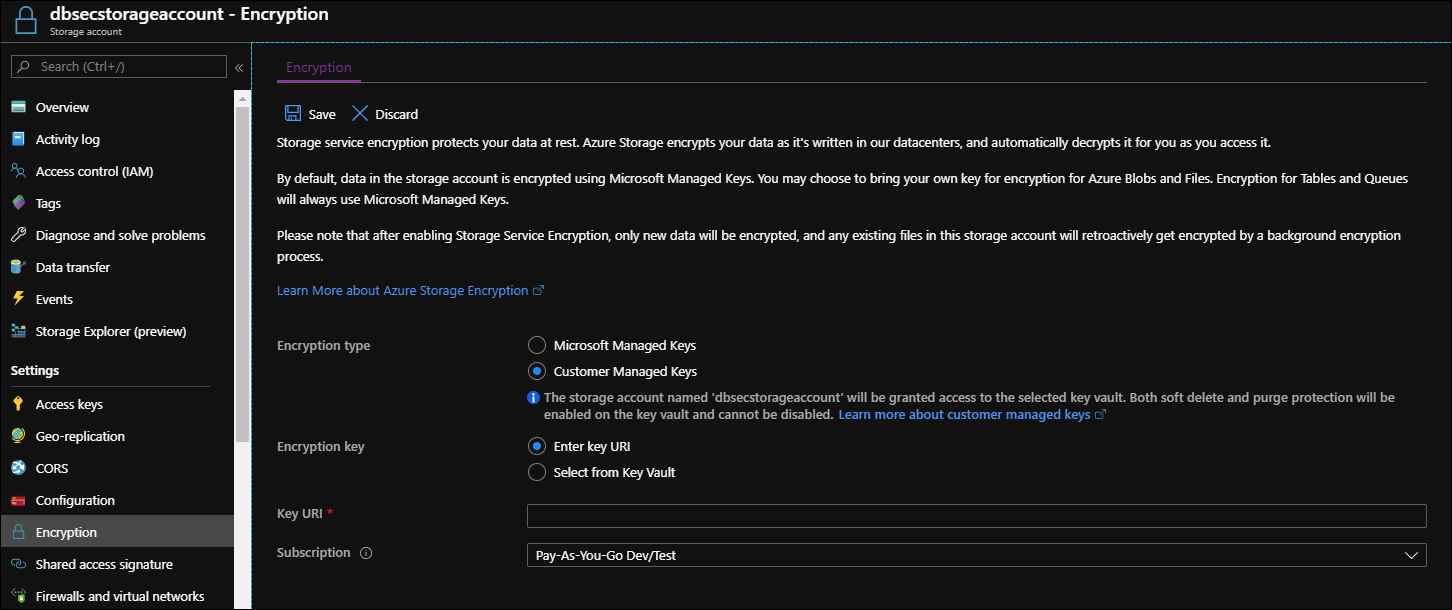
- Provided transparently by the service for encryption at rest. Own keys can be set up using azure key vault if needed.
- Client side is offered, when the data can be encrypted before being sent over the wire. Implemented in the client libraries and supported by Azure Storage.
Redundancy
- Locally-redundant storage (LRS): synchronous replication within a single physical datacenter in the primary region. It doesn’t provide the zone separation that ZRS does.
- Zone-redundant storage (ZRS): high availability. Data is replicated synchronously across three Azure availability zones in the primary region.
- Geo-redundant storage (GRS): Cross-regional replication. Data is replicated synchronously three times in the primary region, then replicated asynchronously to the secondary region. For read access to data in the secondary region, enable read-access geo-redundant storage (RA-GRS).
- Geo-zone-redundant storage (GZRS): Replication for scenarios requiring both high availability and maximum durability. Data is replicated synchronously across three Azure availability zones in the primary region, then replicated asynchronously to the secondary region. For read access to data in the secondary region, enable read-access geo-zone-redundant storage (RA-GZRS).
The asynchronous part matters: a regional failover can lose writes that haven’t reached the secondary yet. And replication copies deletions too. Keep soft delete, versioning or backups in the design if the failure you’re worried about is someone deleting the wrong thing. Redundancy details and service support.
Working with it (Az CLI)
(If you don’t already have the AZ CLI installed you can just do: Invoke-WebRequest -Uri https://aka.ms/installazurecliwindows -OutFile .\AzureCLI.msi; Start-Process msiexec.exe -Wait -ArgumentList '/I AzureCLI.msi /quiet'
)
Worth noting that if az login returns multiple accounts you need to make sure that you are targeting the right account with everything else you are trying to do. For example, if I execute az resource list, it would be empty by default. I need to target the right account with:
az account set -s {id}
(Id can be found by inspecting the az login return information).
Then, we can create a storage account with:
az storage account create --name dbsecstorageaccount --resource-group TestingThings --kind StorageV2 --access-tier Hot
Here’s what I found interesting while trying to understand this stuff: Creating that “Storage Account” went ahead and created all the endpoint types mentioned above. It is on me to either get more granular in what I ask for, or make configuration changes as needed.
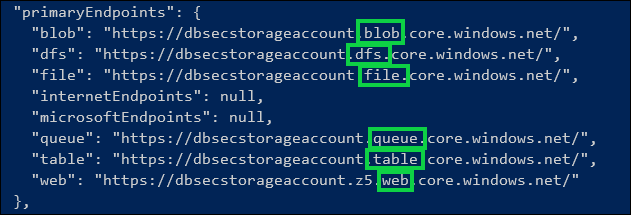
We can see endpoint addresses in the account properties. That doesn’t mean the account is serving a public website or that its blobs are anonymously readable.
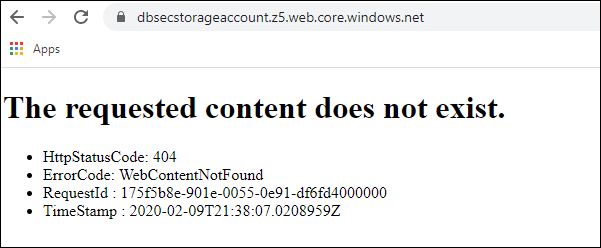
The account name needs to be globally unique because it’s used in those DNS names. Static website hosting is a separate setting: enabling it creates the $web container, whose contents can be served anonymously through the website endpoint. Don’t confuse that with normal blob authorization.
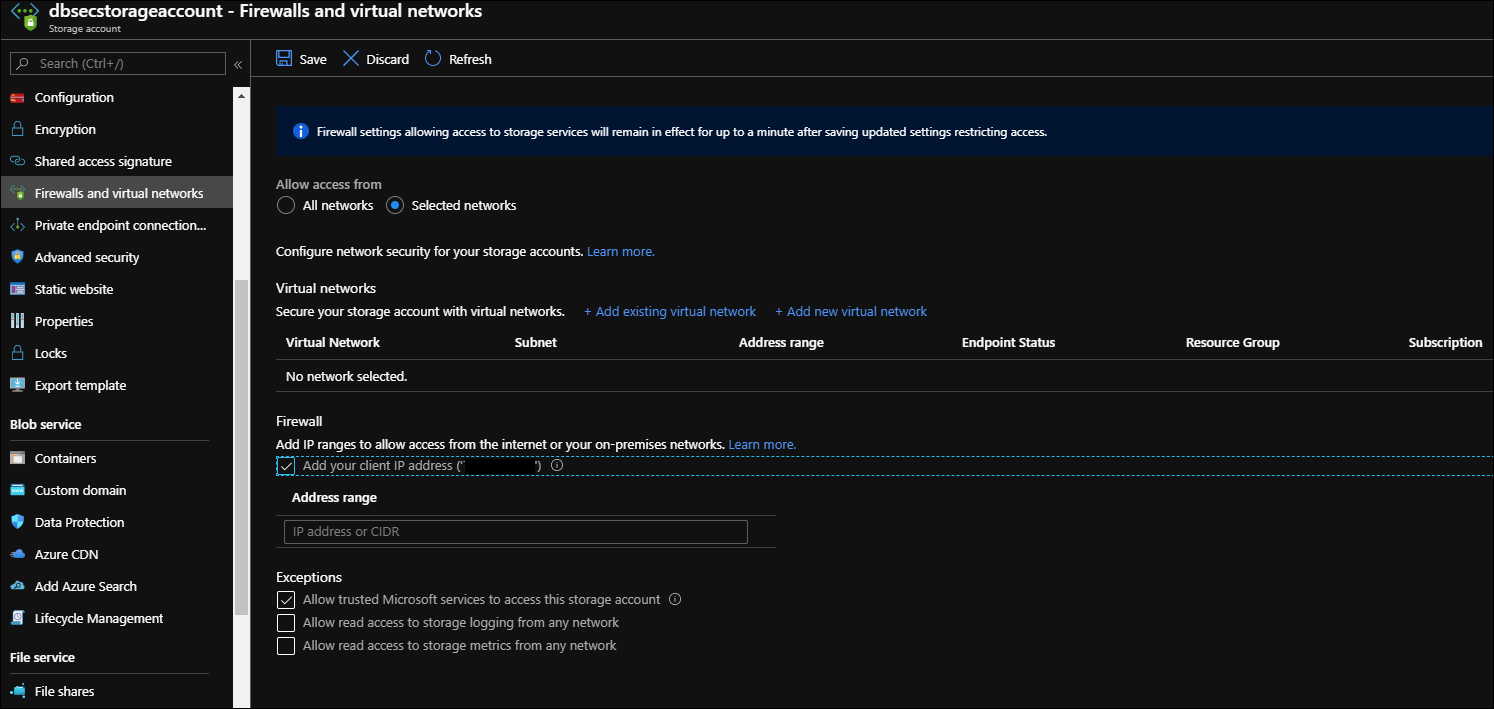
The firewalls and networks section controls which networks can reach the storage services. That’s separate from deciding whether a caller is authorized, or whether content is anonymously readable:
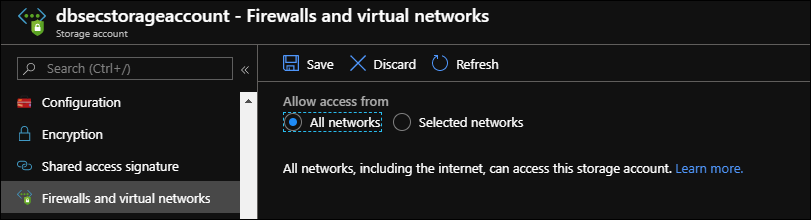
It is really simple to lock down the networks that can access the endpoints, either by IP range, or by predefined networks you’ve configure in Azure.
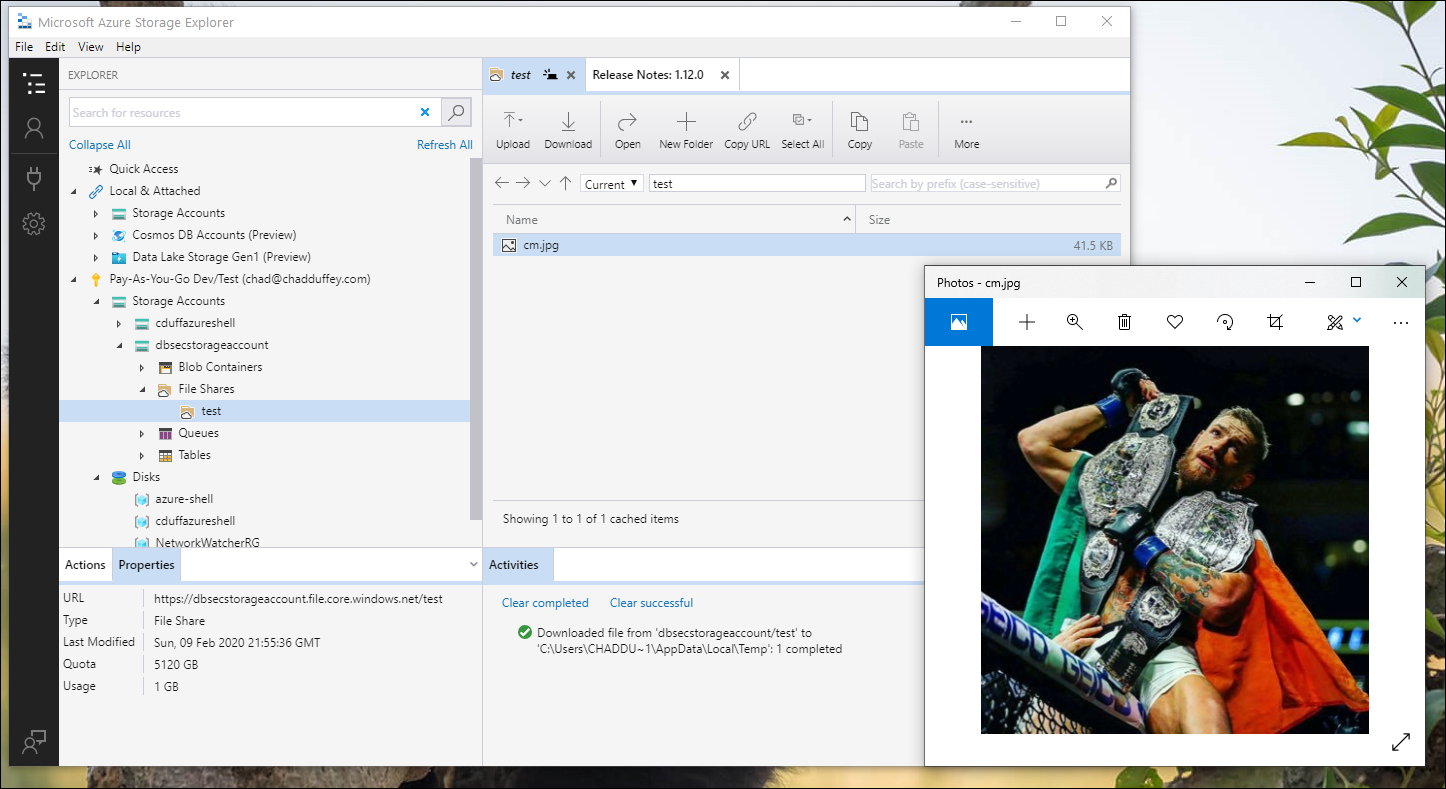
Storage Explorer
If you are looking for tools to make it easy to work with Storage Accounts as if they were traditional file servers, download the storage explorer
Azcopy
Tool for copying files around with Azure. It is also able to copy from AWS. (Don’t forget to assign the ‘Storage Blob Data Contributor’ role to the account doing the azcopying. Microsoft have done a good job separating ‘data’ access from administrative access for this role)
Login:
.\azcopy.exe login
Then, assuming our storage account name is “dbsectest” we’d use:
./azcopy make "https://dbsectest.blob.core.windows.net/testcontainer"
to create a new container.
Then:
.\azcopy copy "C:\tmp\Biztalk Server\*" "https://dbsectest.blob.core.windows.net/testcontainer" --recursive
If that’s working, it will look like this:
PS C:\azcopy> .\azcopy copy "C:\tmp\Biztalk Server\*" "https://dbsectest.blob.core.windows.net/testcontainer" --recursive     INFO: Scanning...
INFO: Using OAuth token for authentication.

Job ed1e4c7b-bb1e-1e4f-6922-01af2742dd9f has started
Log file is located at: C:\Users\ChadDuffey\.azcopy\ed1e4c7b-bb1e-1e4f-6922-01af2742dd9f.log

9.1 %, 3 Done, 0 Failed, 15 Pending, 0 Skipped, 18 Total, 2-sec Throughput (Mb/s): 4.9806
and in the Azure portal, its going to look like this:

There’s more copy operations than you’d expect supported including AWS and Azure to Azure. But the interesting thing is that there are more authorization options - Service Principal, Client Secret and Certificates have support. This makes azcopy work well for automated tasks and scripts. The documentation even suggests using wget or equivalent to always pull the latest version of azcopy at the top of the script.
More detail here.
Shared Access Signature
Simple example, but if I wanted to temporarily share access to content with someone and also be able to define CRUD rights, this is the way to roll. (Note that this would usually be done via code, as a part of a workflow, but this demonstrates the power of the feature)
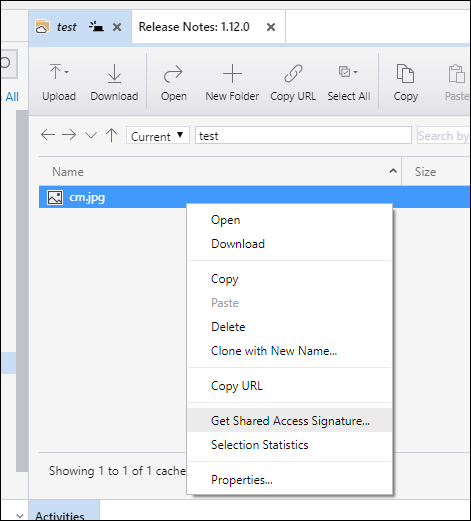
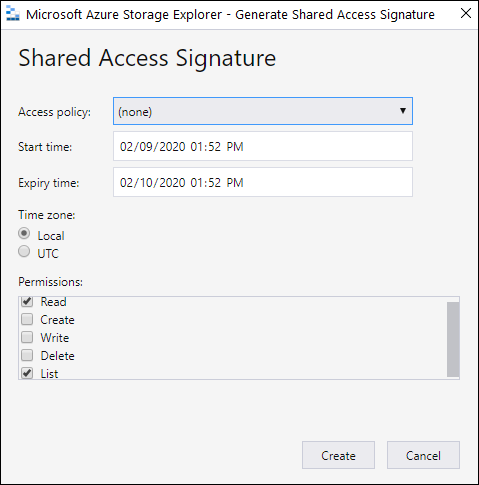
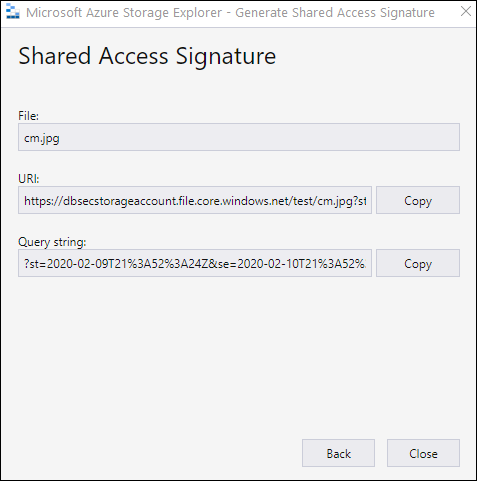
With this, I can provide time-bound access to a resource without creating an account for the recipient. Similar to Dropbox shared links. Whoever has the URL has the access it grants, though, so keep the permissions narrow and don’t drop the link into logs or a public ticket.
Connect to VM
Its also possible to have the storage explorer generate a net share connection command to allow Azure IaaS machines to connect to the storage account (assuming permissions are set correctly). Just right click the share and ask it to “connect file share to VM”
net use [drive letter] \\dbsecstorageaccount.file.core.windows.net\test /u:dbsecstorageaccount *
The * prompts for the storage account key instead of putting it in the command. This is the Shared Key example; it isn’t the same as mounting with an individual user’s identity.