azure
Infrastructure Notes - Azure Key Vault
Notes from Gary Grudzinskas’ Securing Virtual Machines with Azure Key Vault course on Pluralsight. Most of the lab is about storing disk-encryption material and deploying certificates to VMs.
The AzureRM commands below belong to that 2020 lab. There’s a more significant change than the module names: Azure Disk Encryption is scheduled to retire on September 15, 2028. Microsoft directs new VM builds to encryption at host and provides a migration path for existing ADE machines. Start with the current disk-encryption guidance before following the BitLocker section on a new VM.
Azure Key Vault helps solve the following problems:
- Secrets Management - Azure Key Vault can be used to Securely store and tightly control access to tokens, passwords, certificates, API keys, and other secrets
- Key Management - Azure Key Vault can also be used as a Key Management solution.
- Certificate Management - Azure Key Vault is also a service that lets you easily provision, manage, and deploy public and private Transport Layer Security/Secure Sockets Layer (TLS/SSL) certificates for use with Azure and your internal connected resources.
- Cryptographic operations - Key Vault can perform operations such as signing and key wrapping without returning the private key to the caller. Premium vaults support HSM-protected keys. Secrets are different: an authorized secret read returns the secret value to the application. Keys and secrets.
For current commands, use the Az.KeyVault PowerShell reference. The examples later in this post retain their historical AzureRM syntax.
Pieces used by this disk-encryption lab:
- Microsoft Entra ID
- PowerShell for Azure (
Azmodules for current work; the older examples below useAzureRM) - Connectivity from VM to Key Vault, VM to Microsoft Entra ID, VM to Storage account.
Components:
- Azure App
- Key Vault
- VM
You can have multiple key vaults in your account, fit for purpose. You can create them in the UI if needed. Keeping disk-encryption material in a vault helps control who can retrieve it, but it doesn’t guarantee that a VM or its data can’t leave Azure. An authorized caller may retrieve the material, and a running VM can read its unlocked disks. Encryption at rest doesn’t stop that caller copying the data.
In the context of secrets: Azure Key Vault is a secret store: a centralized cloud service for storing application secrets - configuration values like passwords and connection strings that must remain secure at all times. Key Vault helps you control your applications’ secrets by keeping them in a single central location and providing secure access, permissions control, and access logging.
IAM
There are a stack of built in roles, and the ability to customize them or create new ones - but there is also a wizard to show exactly what things a particular principal can do based on their role assignments.
Access to a key vault is controlled through two interfaces: the management plane and the data plane. The management plane is where you manage Key Vault itself. Operations in this plane include creating and deleting key vaults, retrieving Key Vault properties, and updating access policies. The data plane is where you work with the data stored in a key vault. You can add, delete, and modify keys, secrets, and certificates.
To access a key vault in either plane, all callers (users or applications) must have proper authentication and authorization. Authentication establishes the identity of the caller. Authorization determines which operations the caller can execute.
Both planes use Microsoft Entra ID (formerly Azure AD) for authentication. The management plane uses Azure RBAC. For the data plane, a vault can use access policies or Azure RBAC; Microsoft recommends RBAC.
An easy distinction to miss: being able to manage a vault isn’t necessarily permission to read its secrets. But with the legacy access-policy model, someone who can change the access policies can grant themselves that read access. Review who can change permissions as well as who currently has them.
Logging
The Azure activity log covers management operations. For secret reads and other data-plane activity, configure a diagnostic setting for the vault’s audit logs and send them to a destination such as Log Analytics or Storage. The logs aren’t an automatic, permanent history in the portal.
After enabling it, retrieve a test secret and find the event. Check the caller, operation and result. That proves the path is working much more convincingly than an enabled checkbox. Delivery is asynchronous; don’t treat ten minutes as a hard upper bound.
Creating a Key Vault
The actual command (you need to do other things first):
PS C:\Users\ChadDuffey> New-AzureRmKeyVault -VaultName $kvName -ResourceGroupName $rgName -Location $location


Vault Name                       : duffKV
Resource Group Name              : duffRG
Location                         : West US
Resource ID                      : /subscriptions/a/resourceGroups/duffRG/providers/Microsoft.KeyVault/vaults/duffKV
Vault URI                        : https://duffkv.vault.azure.net/
Tenant ID                        :
SKU                              : Standard
Enabled For Deployment?          : False
Enabled For Template Deployment? : False
Enabled For Disk Encryption?     : False
Soft Delete Enabled?             :
Access Policies                  :
                                   Tenant ID                                  :
                                   Object ID                                  :
                                   Application ID                             :
                                   Display Name                               : Chad Duffey (chad@chadduffey.com)
                                   Permissions to Keys                        : get, create, delete, list, update, import, backup, restore, recover
                                   Permissions to Secrets                     : get, list, set, delete, backup, restore, recover
                                   Permissions to Certificates                : get, delete, list, create, import, update, deleteissuers, getissuers, listissuers, managecontacts,
                                   manageissuers, setissuers, recover, backup, restore
                                   Permissions to (Key Vault Managed) Storage : delete, deletesas, get, getsas, list, listsas, regeneratekey, set, setsas, update, recover, backup,
                                   restore


Network Rule Set                 :
                                   Default Action                             : Allow
                                   Bypass                                     : AzureServices
                                   IP Rules                                   :
                                   Virtual Network Rules                      :

Tags                             :


PS C:\Users\ChadDuffey>
The original lab script creates a vault and an application for the older disk-encryption flow. It grants very broad permissions, including purge; those aren’t a sensible permission set for an application that only reads a secret:
$kvName = 'duffKV'
$rgName = 'duffRG'
$location = 'West US'
$aadClientSecret = 'duffClientSecret123'
$appDisplayName = 'duffEncryptApp'

#Connect-AzureRmAccount -Subscription XXXXXXX

New-AzureRmResourceGroup -Name $rgName -Location $location
New-AzureRmKeyVault -VaultName $kvName -ResourceGroupName $rgName -Location $location

Set-AzureRmKeyVaultAccessPolicy -VaultName $kvName -ResourceGroupName $rgName -EnabledForDiskEncryption

$secureaadClientSecret = ConvertTo-SecureString $aadClientSecret -AsPlainText -Force

$aadApp = New-AzureRmADApplication -DisplayName $appDisplayName -HomePage 'http://homepageduffEncryptApp' -IdentifierUris 'http://uriduffEncryptApp' -Password $secureaadClientSecret

$appID = $aadApp.ApplicationId

$aadServicePrincipal = New-AzureRmADServicePrincipal -ApplicationId $appID

Set-AzureRmKeyVaultAccessPolicy -VaultName $kvName -ServicePrincipalName $appID `
    -PermissionsToKeys decrypt,encrypt,unwrapKey,wrapKey,verify,sign,get,list,update,create,import,delete,backup,restore,recover,purge `
    -PermissionsToSecrets get, list, set, delete, backup, restore, recover, purge
Bitlocker integration
The original lab had Generation 2 and VM-size limitations. Generation 2 is no longer a blanket ADE exclusion; check the supported sizes and limitations in the linked disk-encryption documentation. The output below records what happened with the older flow.
When we first build a VM:
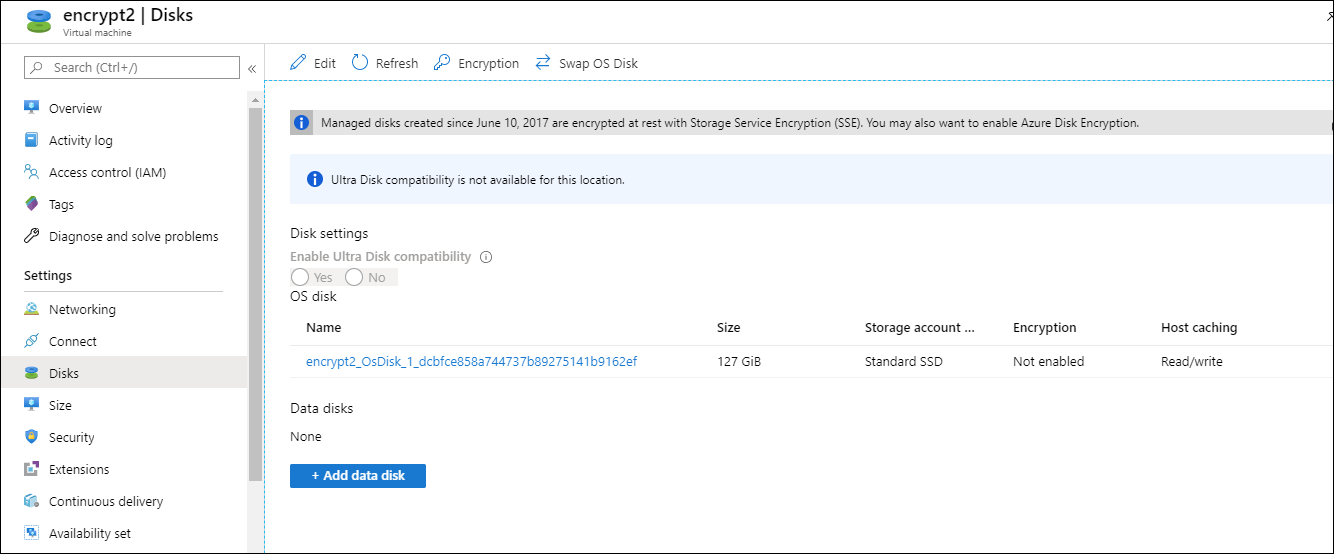
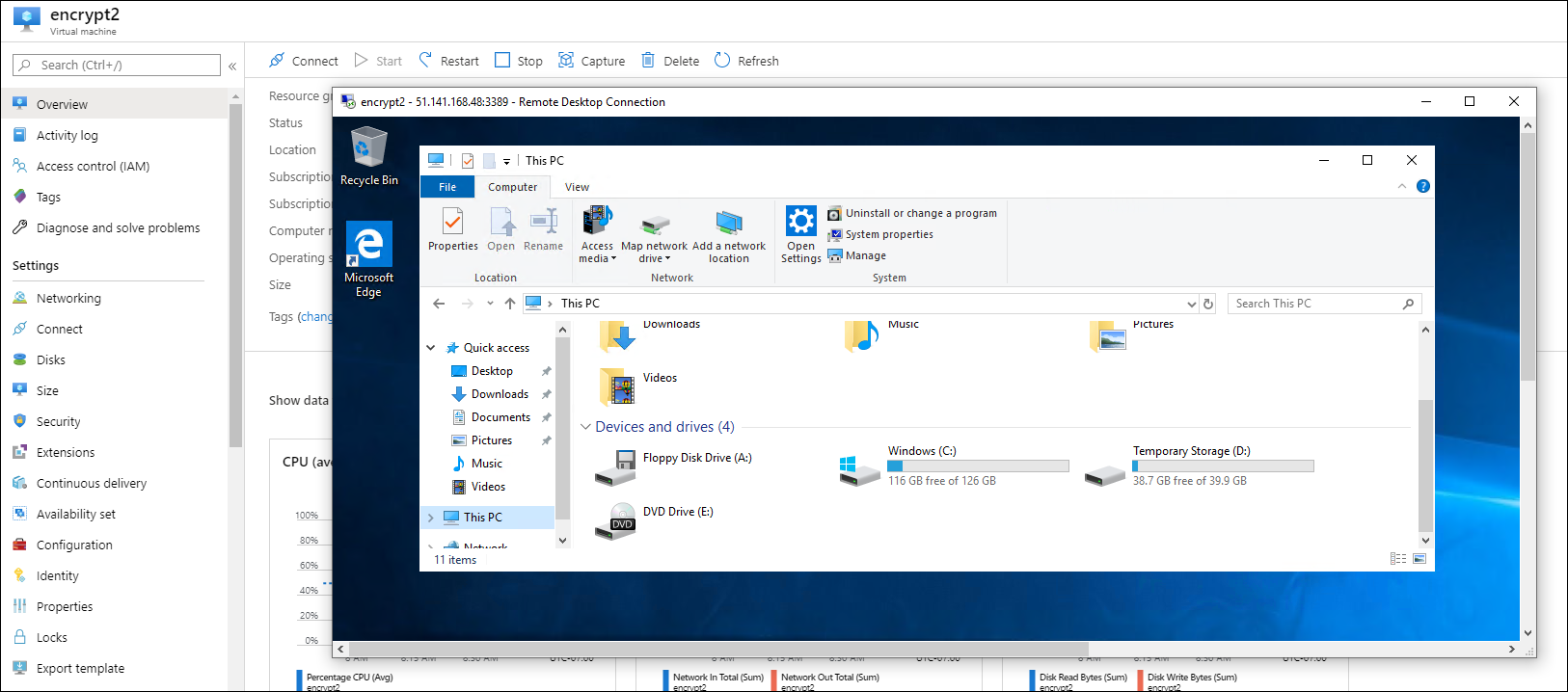
To encrypt, we add the following to our script:
$vmName = 'plazVM'

$kv = Get-AzureRmKeyVault -VaultName $kvName -ResourceGroupName $rgName
$kvUri = $kv.VaultUri
$kvRID = $kv.ResourceId

Set-AzureRmVMDiskEncryptionExtension -ResourceGroupName $rgName -VMName $vmName -AadClientID $appID -AadClientSecret $aadClientSecret -DiskEncryptionKeyVaultUrl $kvUri -DiskEncryptionKeyVaultId $kvRID
PowerShell will let you know that you have a 10-15 minute wait coming up.
We could also do the data disks:
$kv = Get-AzureRmKeyVault -VaultName $kvName -ResourceGroupName $rgName
$kvUri = $kv.VaultUri
$kvRID = $kv.ResourceId

$aadApp = Get-AzureRmADApplication -DisplayName $appDisplayName
$appID = $aadApp.ApplicationId


Set-AzureRmVMDiskEncryptionExtension -ResourceGroupName $rgName -VMName $vmName -AadClientID $appID -AadClientSecret $aadClientSecret -DiskEncryptionKeyVaultUrl $kvUri -DiskEncryptionKeyVaultId $kvRID -VolumeType Data

Get-AzureRmVMDiskEncryptionStatus -VMName $vmName -ResourceGroupName $rgName
Here’s a gotcha! Not all VM types support encryption:
Set-AzureRmVMDiskEncryptionExtension : VM size is Basic_A1. Disk encryption is not supported for Basic Family VM sizes currently.
ErrorCode: NotSupported
ErrorMessage: VM size is Basic_A1. Disk encryption is not supported for Basic Family VM sizes currently.
ErrorTarget:
StatusCode: 409
ReasonPhrase: Conflict
OperationID : 75a81ea3-a426-4c16-981c-ded861fb876b
And a second one, VM and Key Vault need to be in the same region:
Set-AzureRmVMDiskEncryptionExtension : Long running operation failed with status 'Failed'. Additional Info:'The Key Vault
https://duffkv.vault.azure.net/secrets/FCC65FF0-B580-42F5-828A-3B100D905FDE/40f226f47b2a40ff832cb7bc030ec653 is located in location West US, which is different from the location of the
VM, westus2. The VM and Key Vault need to be located within the same region.'
ErrorCode: KeyVaultAndVMInDifferentRegions
ErrorMessage: The Key Vault https://duffkv.vault.azure.net/secrets/FCC65FF0-B580-42F5-828A-3B100D905FDE/40f226f47b2a40ff832cb7bc030ec653 is located in location West US, which is
different from the location of the VM, westus2. The VM and Key Vault need to be located within the same region.
Here’s what it looks like when it goes well:
PS C:\Users\ChadDuffey> Set-AzureRmVMDiskEncryptionExtension -ResourceGroupName $rgName -VMName $vmName -AadClientID $appID -AadClientSecret $aadClientSecret -DiskEncryptionKeyVaultUrl $kvUri -DiskEncryptionKeyVaultId $kvRID

RequestId IsSuccessStatusCode StatusCode ReasonPhrase
--------- ------------------- ---------- ------------
                         True         OK OK
Quickstart Templates
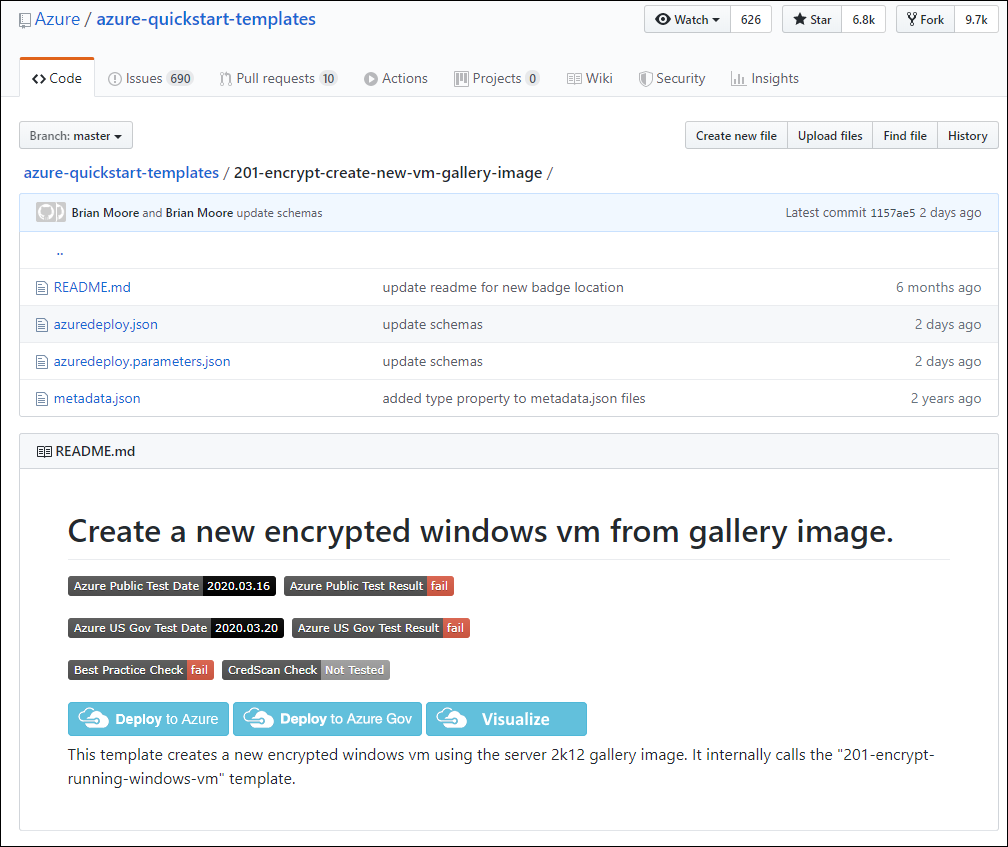
Quickstart templates: https://github.com/Azure/azure-quickstart-templates
Specifically: https://github.com/Azure/azure-quickstart-templates/tree/master/201-encrypt-create-new-vm-gallery-image
Check out the “Deploy to Azure” button. Hot.
Deploying Certificates via Key Vault
(Gary Grudzinskas script for:) Deploying Certificates into Key Vault for distribution:
$secretName = "CertVM"
$certPassword = "CertPW"
$fileName = "CertVM.pfx"

$fileContentBytes = Get-Content $fileName -Encoding Byte
$fileContentEncoded = [System.Convert]::ToBase64String($fileContentBytes)

$jsonObject = @"
{
  "data": "$fileContentEncoded",
  "dataType" :"pfx",
  "password": "$certPassword"
}
"@

$jsonObjectBytes = [System.Text.Encoding]::UTF8.GetBytes($jsonObject)
$jsonEncoded = [System.Convert]::ToBase64String($jsonObjectBytes)

$secret = ConvertTo-SecureString -String $jsonEncoded -AsPlainText -Force
Set-AzureKeyVaultSecret -VaultName $kvName -Name $secretName -SecretValue $secret
Then: https://github.com/Azure/azure-quickstart-templates/tree/master/201-vm-push-certificate-windows. This will run you through the configuration that will allow a certificate to be pushed right into the personal store inside the image. That is, we can deploy certificates using Azure.
Custom Secrets with Key vault
Say I had to store the setup password for a machine:
az keyvault secret set --name WVD-Machine001 --value 5645342anbt12 --vault-name duffKV
or with PowerShell module:
$Secret = ConvertTo-SecureString -String 'Password123' -AsPlainText -Force
Set-AzureKeyVaultSecret -VaultName 'duffkv' -Name 'WVD-Machine123' -SecretValue $Secret
Output:
{
  "attributes": {
    "created": "2020-03-22T19:42:22+00:00",
    "enabled": true,
    "expires": null,
    "notBefore": null,
    "recoveryLevel": "Purgeable",
    "updated": "2020-03-22T19:42:22+00:00"
  },
  "contentType": null,
  "id": "https://duffkv.vault.azure.net/secrets/WVD-Machine001/df3e6bfcb4334d0ab74fa176c98d22ac",
  "kid": null,
  "managed": null,
  "tags": {
    "file-encoding": "utf-8"
  },
  "value": "5645342anbt12"
}
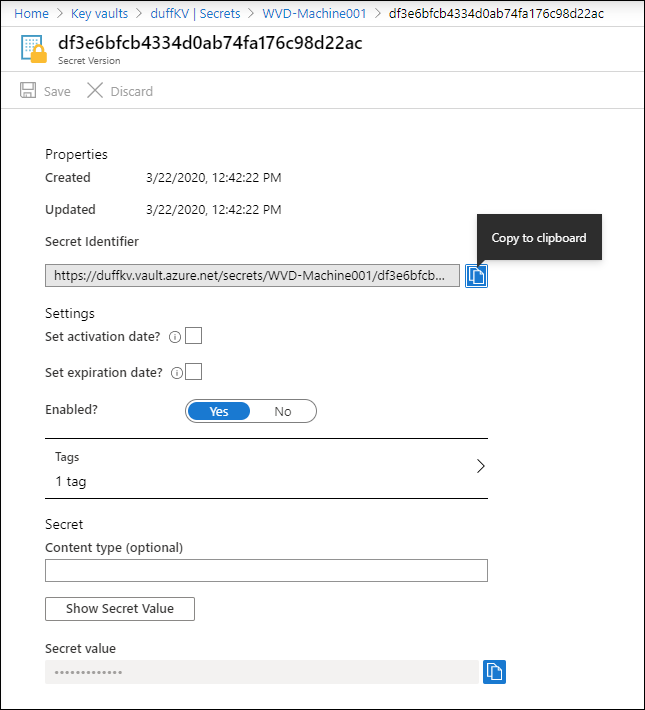
Notice how we can even set expiration on the secrets. There is a catch though: Key Vault’s Get operation can still retrieve an expired secret. The expiration timestamp doesn’t revoke the underlying password or automatically rotate it. Disable the secret version when retrieval must stop, and rotate the credential at the service that uses it. Secret date-time behavior.
For a new secret using the current PowerShell module, we can also avoid putting the password into command history:
$secret = Read-Host 'Secret value' -AsSecureString
Set-AzKeyVaultSecret -VaultName 'duffkv' -Name 'WVD-Machine123' -SecretValue $secret | Out-Null
One last setting to understand before storing anything difficult to replace: soft delete provides a recovery window; purge protection prevents permanently purging deleted objects during that window. They aren’t interchangeable. Soft delete and purge protection.