openshift
OpenShift from scratch, part I: Windows installation
The setup of CodeReady Containers is really simple; this post captures the quirks I ran into on Windows. The short version of my problem: plenty of RAM, hopeless disk. Replacing the rotational disk with an SSD resolved the startup errors described below.
CodeReady Containers is now called Red Hat OpenShift Local. The crc command is still the thing we’re using to manage the local instance.
Background:
The deployment approaches I was comparing here were:
- [1] Installer provisioned. Could be AWS/Azure/GCP/Openstack; the main point is that the OpenShift installer creates the infrastructure and bootstrap node.
- [2] User-provisioned. Similar, it could be AWS/Azure/GCP/RHOSP/VSphere/IBM/ or Bare metal; the main point is though - you’re configuring everything yourself (compared to “installer provisioned”). This is obviously More difficult, but is also more granular and open to very specific configuration where needed.
I’d call those two the production level deployment approaches.
To get started fast, but still be able to learn the same concepts right up to the sharper points you want to start with:
- [3] CodeReady Containers - the laptop/desktop deployment. It runs a small cluster in a single VM, using the hypervisor for the host OS. Some operators are disabled to keep the resource requirements down. Treat it as a development environment that can be rebuilt: keep manifests and source code outside the VM. Stopping it is fine; deleting and recreating it is what loses the local cluster data.
This post is a very quick capture of the installation of code ready containers on Windows. The only aims are to 1) provide others an idea what to expect & 2) remind me the same.
The minimums listed for the version in this 2022 lab were:
- 4 CPUs
- 9GB memory.
- 35GB of storage.
- (Strong recommend) SSD storage.
For a new installation, check the current CRC preset requirements. The OpenShift preset now lists 10.5 GB of RAM, so the old 9 GB figure above is no longer enough. Leave memory for Windows as well.
Steps:
-
[1] Download Code Ready Containers from Redhat. Start here: https://developers.redhat.com/products/codeready-containers/overview and click the big “Install OpenShift on your laptop” button. You’ll need to either create a redhat account or log in with one you have (it is free). Right next to the download button there will be a “pull secret” that you’ll need to save for later (when starting the environment). I recommend saving the file so you don’t lose it.
-
[2] Extract the .zip file to a temporary location.
-
[3] Run the installer that is extracted. If it has sufficient rights it is going to add the path to the crc.exe file to your system path so that command like “crc {something}” will work from your command prompt.
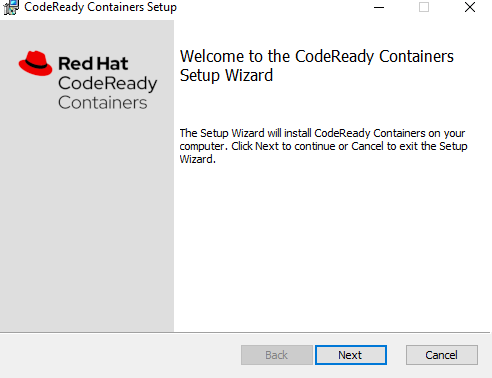
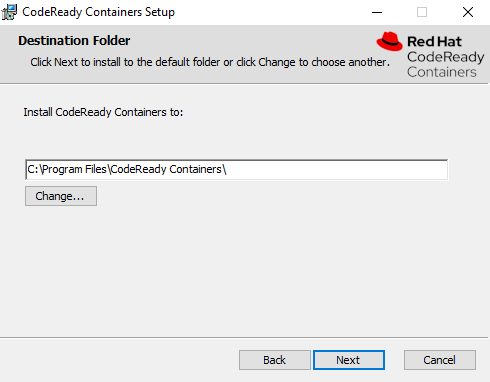
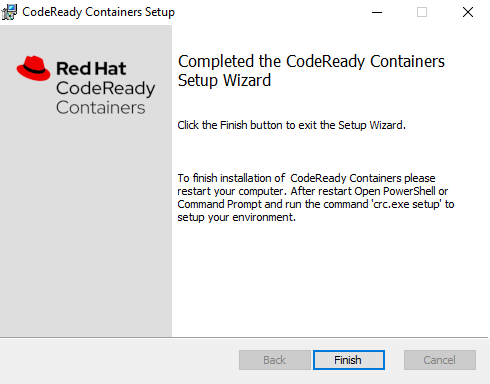
Some notes on the “install” step: Hyper-V will be installed if it is not already. You’ll be asked to reboot if Hyper-V is installed as part of the CRC installation.It is easy to miss, but notice that the final installation box is giving hints on what to do next.
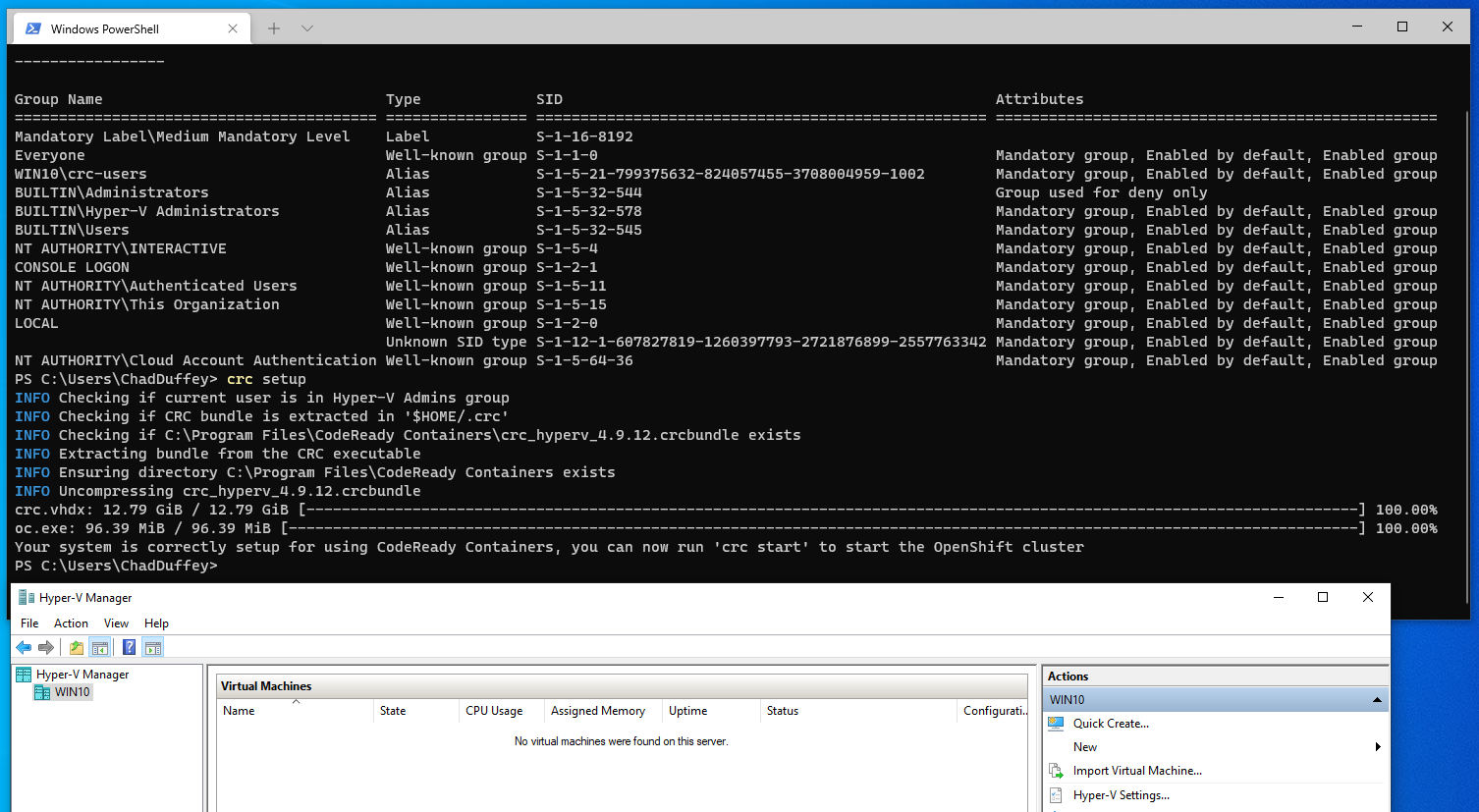
- [4] Run “crc.exe setup”. It will check the configuration and make adjustments as necessary.
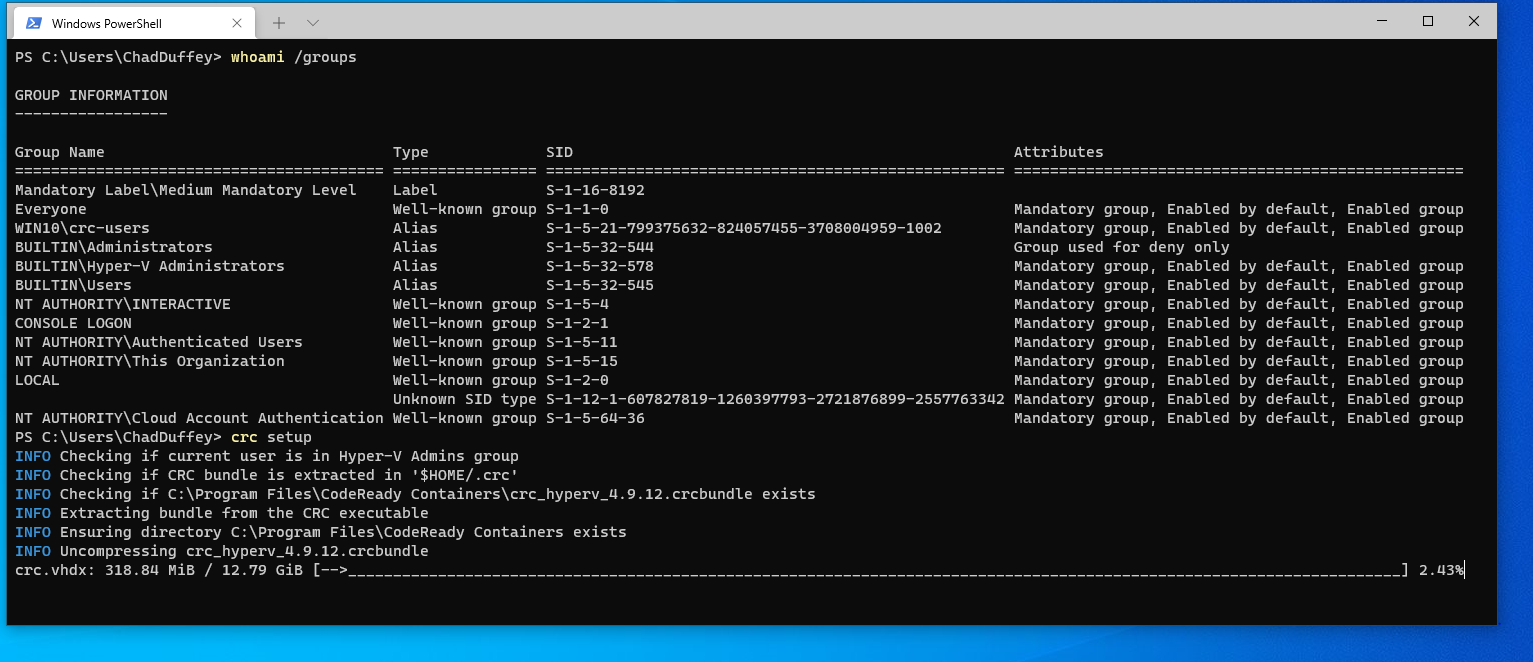
- You’ll also be asked to reboot if the user you are installing with is not a member of the “Hyper-V Administrators group”. The reboot will help with getting the new group membership into the users token. THe screenshot above includes a view of the token showing that the current user is part of the Hyper-V Administrators group and for that reason the check in the crc setup comand will pass.
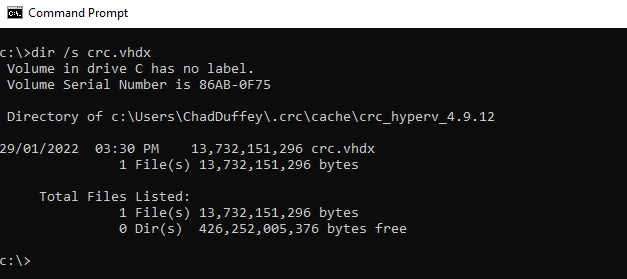
- The crc setup step will download the Hyper-V .vhdx file for the Code Ready Containers instance. Interestingly, this step will not import the .vhdx into Hyper-V; it just makes sure it is available on disk.
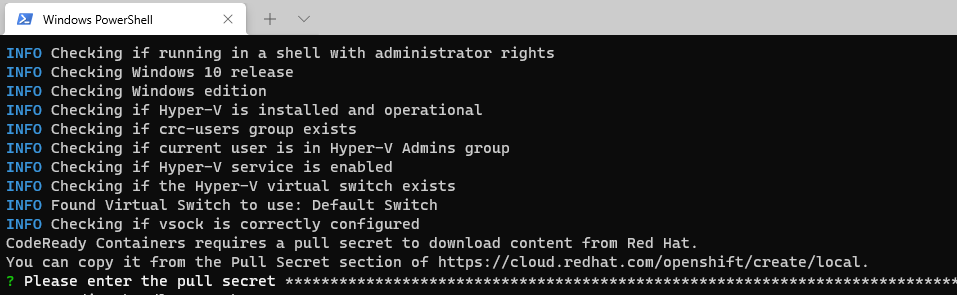
- [5] Run “crc start”. That’ll do the final checks, import the pull secret, import the VM and get the environment running. The pull secret should have been supplied to you when downloading the Cloud Ready Containers installer.
- This is where things went off the rails a little for me. I was getting a few errors, but the first was related to DNS. The Windows host was a brand new machine so I was a little surprised:
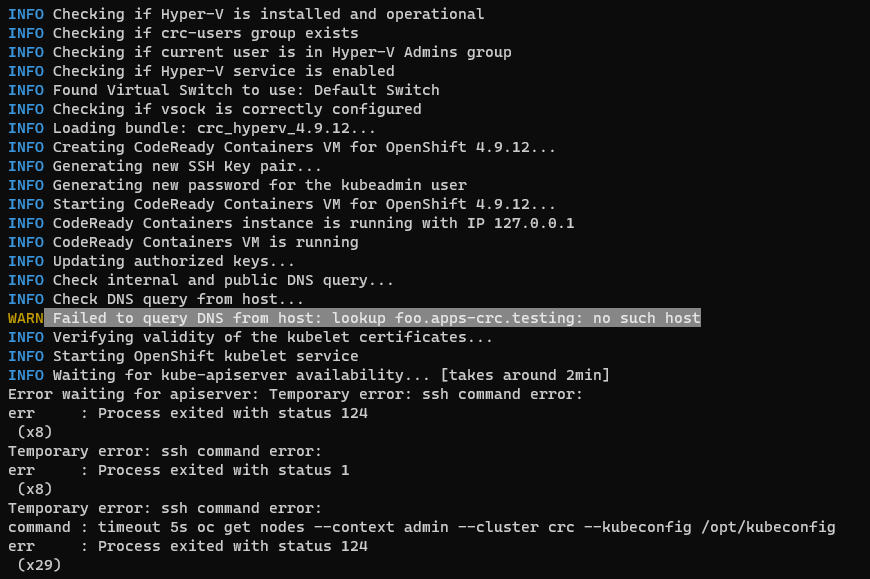
- The first error, related to name resolution was fixed by adding the DNS name to my hosts file to resolve to 127.0.0.1. Unfortunately though, the second error(s) remained even after clearing that first bump in the road.
- Some GitHub issues and posts online mentioned that it was not supported to have things like nested Virtualization or Windows Subsystem for Linux (WSL). Disappointing, but I install WSL as a default, so it is worth a shot…
- The change did not immediately work.
- After messing around for a minute I tried the “oc.exe” command manually and realized that it was failing due to a path error. I’ve updated my system path to include “c:\users\username.crc\bin\oc”.
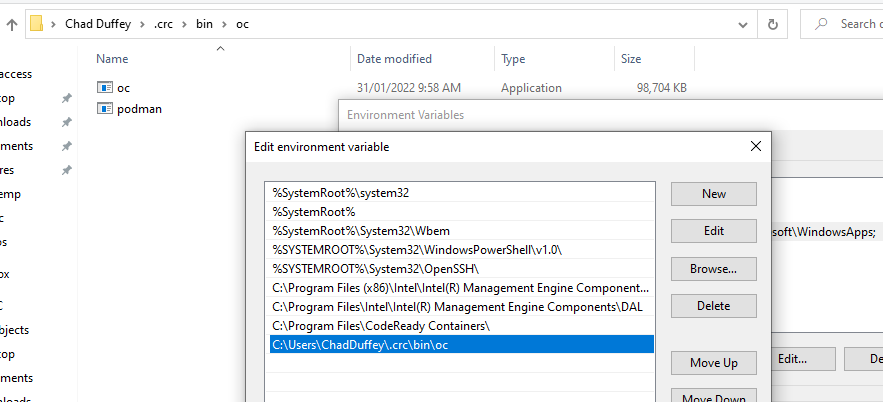
- This also “failed”.
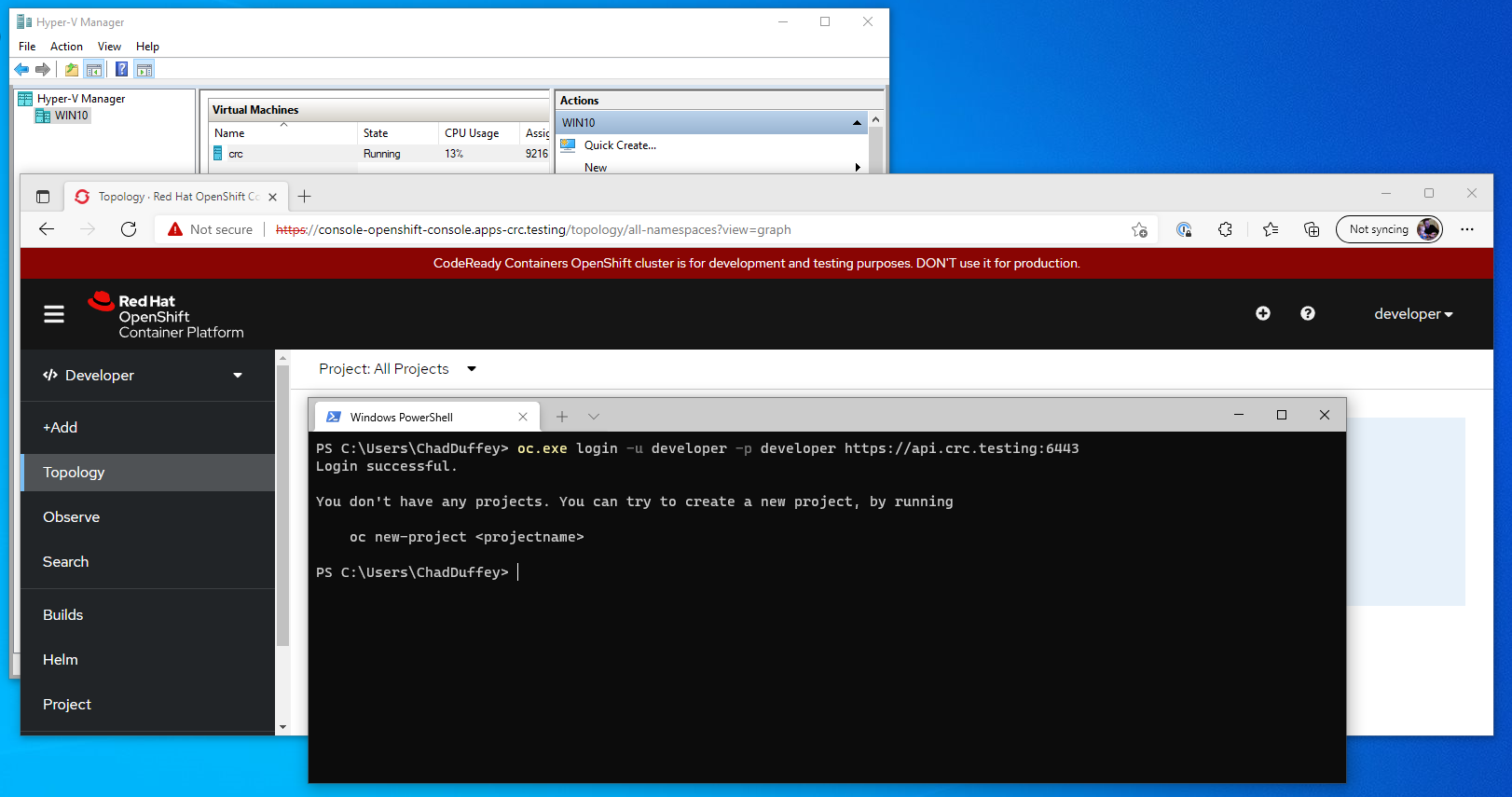
- However, shortly after I realized that if I leave the service to continue starting for about 10 minutes after the error messages, the service starts successfully. I realized this using the tray icon to navigate to the web portal, and then confirmed it using “oc login -u developer -p developer https://api.crc.testing:6443”
- You can see the environment up and running below:
So that’s frustrating, it is possible that all of my trouble was simply not waiting long enough. If that’s true I’d argue that maybe the error message is thrown too early, or on the wrong conditions on Windows, but I should quickly test. I’m going to add back all the things I took away to be sure I was in a supported state: Windows Subsystem for Linux (WSL), VMWare workstation & the yoga DNS client (pointing at NexDNS).
And sure enough. It works.
In this case the VM needed about ten minutes to initialize. That doesn’t mean every startup error can be ignored: check crc status and the logs before tearing the installation apart. The host still had a rotational disk, which looked like the likely bottleneck. The next test was replacing it with an SSD.
Update: I popped a new SSD in the host. The error was resolved and the whole “crc start” process took less than a quarter of the time.
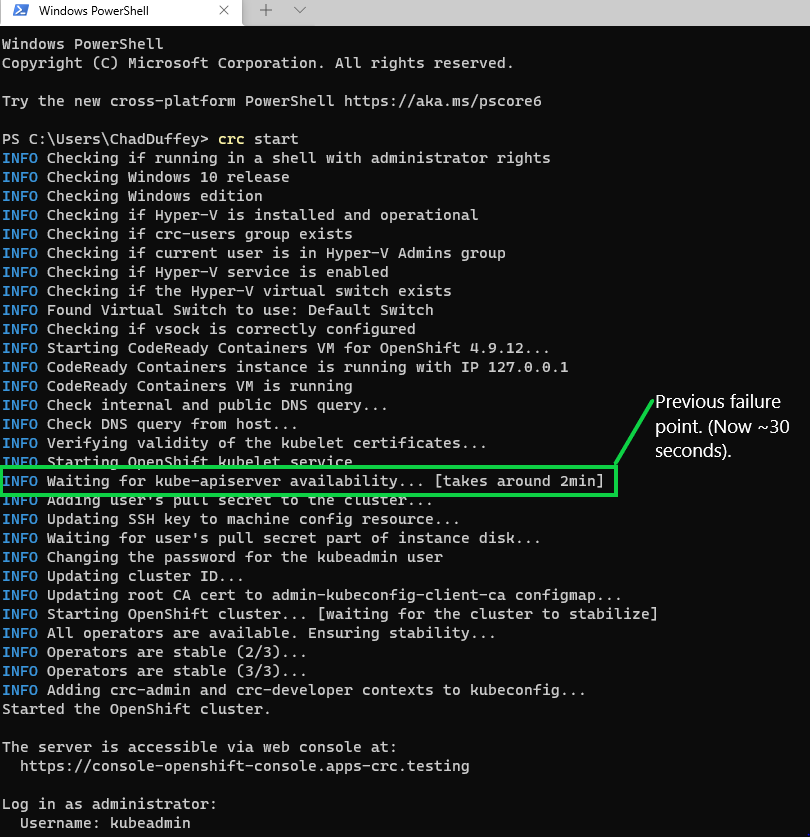
- [6] Run
crc stopwhen you’re done for the day. It shuts down the instance;crc startbrings that same instance back.crc deleteis the command that removes it and its data. Stop, restart and delete behavior.
Before moving on to the next lab, check crc status, log in with oc, then run oc get projects. That separates “the VM exists” from “the OpenShift API is answering and my CLI credentials work.”