windows · security
Reconsidering the Ctrl+Alt+Delete requirement
Is it now safe to stop requiring the Ctrl+Alt+Delete secure attention sequence? Based on the available information and some poking around I think the answer is still no. This post goes through why because I wanted to be able to justify the answer.
The question came up because someone asked whether we could turn it off for convenience - most of our developers use MacOS, and they don’t love the additional keypress requirement.
Windows Hello changes how people authenticate, so the usual explanation about protecting a typed entra/AD password deserves another look when people use a PIN or their face instead. It’s true that macOS doesn’t have the same requirement, AND also true that a fake sign-in prompt can still appear on a machine where Ctrl+Alt+Delete is required. Even so, there’s still enough value in the secure attention sequence for security teams to push back and leave it on (imo).
What the guidance says
The policy is called Interactive logon: Do not require CTRL+ALT+DEL. The double negative makes it easy to misread:
| Policy value | Sign-in behavior |
|---|---|
| Disabled | Require Ctrl+Alt+Delete before sign-in |
| Enabled | Allow sign-in without that preliminary sequence |
Microsoft’s policy reference still describes the sequence as a way to establish a trusted path before entering a password. ASD’s Windows 11 hardening guidance, reviewed in January 2026 for Windows 11 25H2, still recommends setting this policy to Disabled (remember the double negative).
Why the ctl+alt+del keypress matters
Ctrl+Alt+Delete has special handling inside Windows. Windows Internals (p. 557) describes the kernel-mode input system recognising the reserved combination and notifying Winlogon. An ordinary application can’t take ownership of that combination and prevent Winlogon from receiving it. Windows presents its interface on the protected desktop, where LogonUI and credential providers collect credentials during sign-in. (In an unlocked session, pressing the keys brings up the Windows Security screen which is not what we are concerned about with this policy).
A bit of history: Windows Internals (pp. 488–489) connects Ctrl+Alt+Delete to the “trusted path” requirement in the old Trusted Computer System Evaluation Criteria—the Orange Book. That requirement first appears at B2, above the C2 rating awarded to Windows NT 4.0 SP6a.
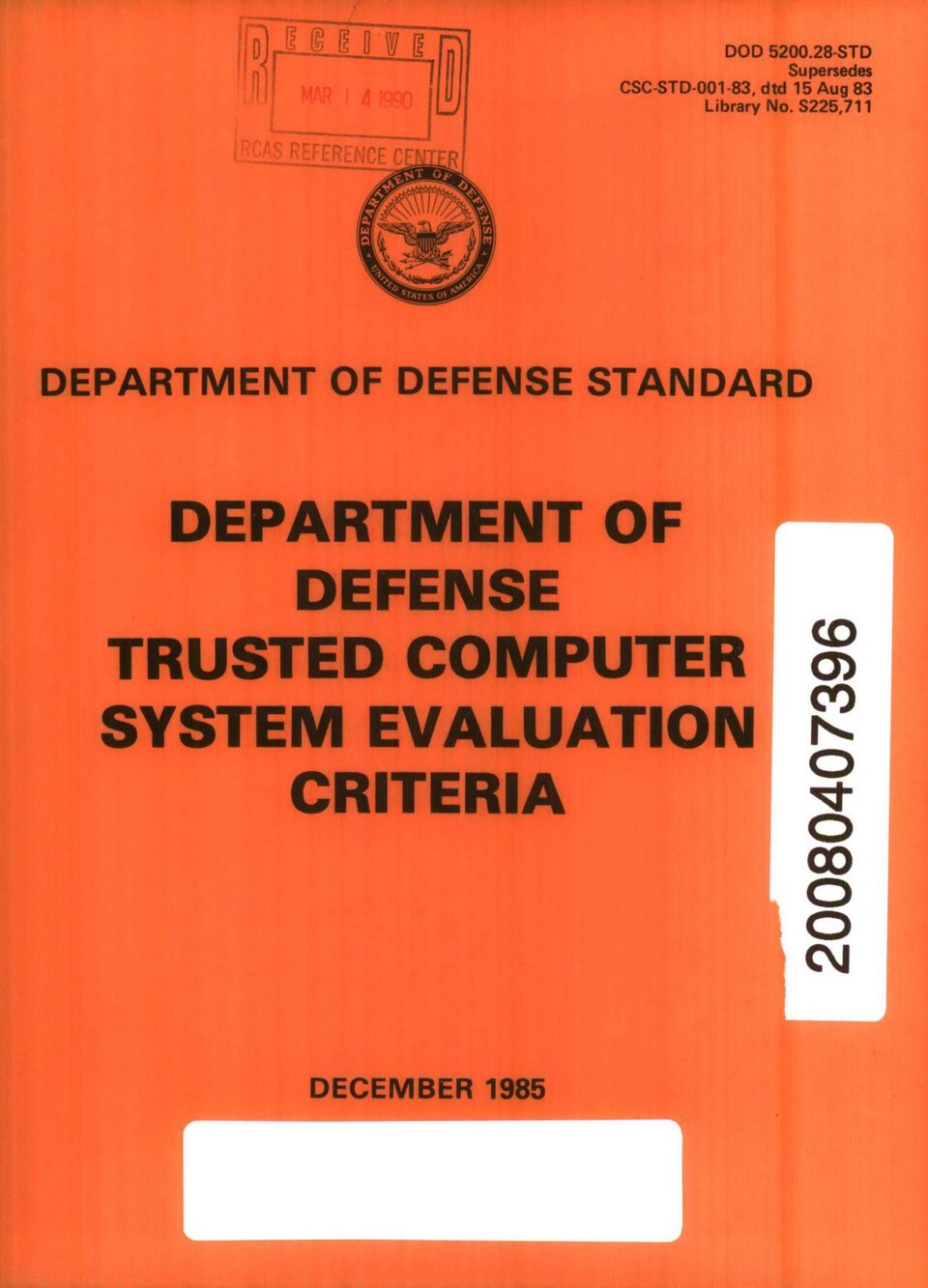

Cover: U.S. Department of Defense, via Wikimedia Commons. Film still: © 1995 United Artists Pictures Inc., via Cyberdelia.
My user was asking about the requirement to press those keys before signing in. Removing that requirement doesn’t disable the sequence or remove the protected sign-in desktop, but it does let users reach the credential fields without that preliminary keypress.
That’s why I still care about requiring it: I want users to expect that step when signing in to Windows. An ordinary application in an unlocked session can draw a lookalike prompt under either policy setting. The policy can’t force someone to press the keys at a fake prompt, but a prompt appearing before the expected keypress should give them a reason to stop. That also made me curious about what could appear before anyone signs in.
Before anyone signs in
To be sure it was still possible to trick users I used a standalone Windows 11 VM running build 26200.8246. Then configured a SYSTEM startup task which launched a separate process in the console session, explicitly targeting WinSta0\Winlogon.
On the test system Windows was configured to require Ctrl+Alt+Delete (default).
The form below appeared before we sent the guest sequence or signed in. There was no injection into Winlogon or LogonUI. I just wanted to be sure we could still create such a thing on modern builds.
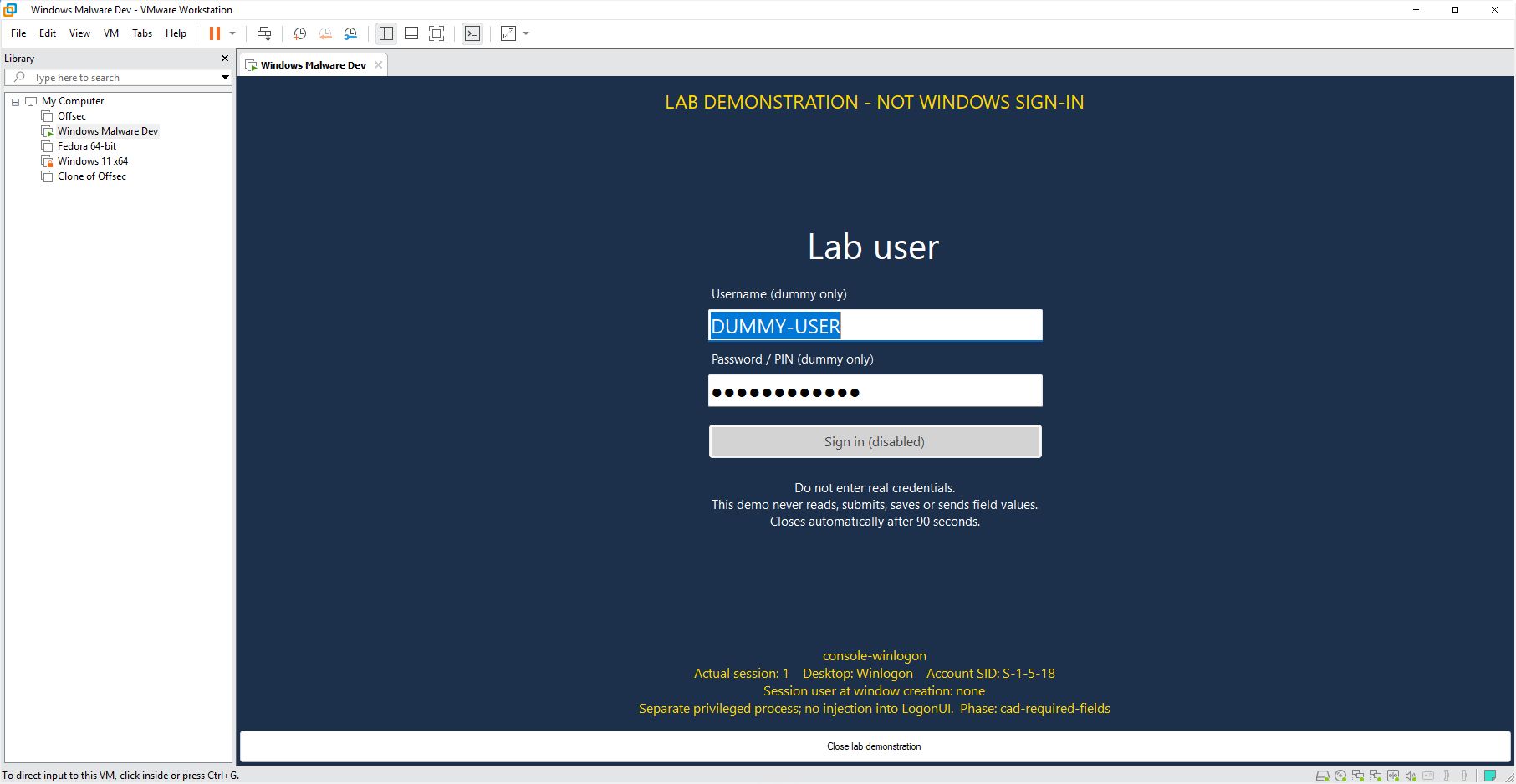
A separate SYSTEM process displaying its own form before sign-in, with CAD required. The footer shows its actual desktop, account SID, and session user state. Click for the full-resolution image.
So it’s clear that the ctrl+alt+del requirement didn’t prevent our SYSTEM process from displaying this form, or stealing user credentials if they were to type them. Microsoft’s desktop documentation explicitly includes LocalSystem among the accounts allowed access so this makes sense.
Does a Hello PIN change the answer
It changes an important part of the argument. Windows Hello for Business uses an asymmetric key associated with the device rather than your Entra password. The PIN the user types authorizes use of the private key; the authentication flow doesn’t even send the PIN to the identity provider. We get a TPM-backed credential, hardware protection and anti-hammering to help protect the actual key. Microsoft’s Hello FAQ explains the design.
In Hello for Business, device possession plus the PIN already supplies two factors. Biometrics aren’t needed to make that combination multifactor authentication.
With the Hello PIN, theft is much less useful away from the device than theft of an Entra account password. That is a reasonable argument for revisiting the Ctrl+Alt+Delete requirement. But the value someone chooses may also be a password or PIN they use elsewhere. Hello PINs can include letters and symbols where policy permits, so a familiar account password could become a Hello PIN too.
Our counterfeit prompt could capture that password in plain text. Even a numeric PIN might be reused on another device or service. This is the reuse risk described by the NCSC.
While we are here its worth mentioning that if you’re relying on TPM protection, check that Use a hardware security device is enabled. Without that policy, Hello for Business can provision software-protected credentials when the TPM is unavailable or unusable.
Oh, and because it came up while searching around for the latest information on this topic - I wouldn’t count on Enhanced Phishing Protection to catch a PIN typed into a fake sign-in prompt. It can warn about unsafe use of the work or school password used to sign in, but Microsoft says it doesn’t alert or send Defender for Endpoint events when the user signs in with a Hello for Business PIN or biometric.
There’s also a difference between a Hello for Business PIN and a local-account PIN. Microsoft’s overview explains that local-account convenience sign-in doesn’t use the asymmetric authentication described above.
Face and fingerprint
You could make the argument that in your environment users only use face or fingerprint…
Biometrics reduce how often people type a secret but when a sensor can’t be used for whatever reason, the normal fallback is the Hello PIN, which still uses the Hello credential. Recovering a forgotten PIN is a separate process; Microsoft’s nondestructive reset flow uses Entra authentication and MFA.
Microsoft’s Windows passwordless experience has exceptions, including initial sign-in, local accounts, and Other user. A missing password tile doesn’t mean users will never be asked for a password.
Recommendation
For now, I would keep the Ctrl+Alt+Delete requirement on your fleet. ASD’s hardening guidance still supports it, and I want users to expect that step before entering their credentials. On a fleet configured that way, an unexpected prompt before the keypress, or a sign-in flow that doesn’t behave normally, is a reason to stop and investigate.
We also confirmed the thing I was most curious about: a program can still display its own full-screen sign-in form before anyone is logged in on the Windows 11 build we tested. It can look exactly like the regular login screen, I just deliberately made mine obvious for the screenshot. To be clear, we already had SYSTEM level access, but we didn’t need to inject into Winlogon or LogonUI to put the form there. So I wouldn’t claim the ctrl+alt+del requirement provides a guarantee that every login window is genuine.
If you want to inspect it
In this follow up section, we’re just poking around to understand how things work, rather than making any big discovery or settling the policy question. Honestly I just found the post boring without an excuse to play with tools :)
For the sign-in components, Microsoft’s architecture documentation explains how Winlogon, LogonUI, credential providers, and LSA fit together. The sample provider’s GetSerialization method shows how a password credential is packed and returned to Windows for submission.
For the optional lab, use Windows 11 x64 and a normal, non-elevated PowerShell session. Install Visual Studio or Build Tools with the Desktop development with C++ workload and a Windows SDK. The disassembly also needs the current WinDbg package.
Download and extract the source ZIP, then open PowerShell in the extracted folder. The README, C++ probe, and runner are also available separately.
Inspect the desktop objects
.\Invoke-Inspection.ps1
The script builds the little probe and writes results into _output. It queries desktop access and selected registry values without changing policy or switching desktops.
Windows desktops are securable objects containing windows, menus, and hooks. Ordinary applications normally use WinSta0\Default; the Winlogon desktop is restricted. Microsoft’s desktop documentation describes the separation, including the constraints on messages and hooks and the switch associated with Ctrl+Alt+Delete. These objects are separate from the virtual desktops in Task View.
The probe uses GetUserObjectInformationW to read the names of its window station, thread desktop, and current input desktop. The recorded run returned:
process.windowstation.name=WinSta0
thread.desktop.name=Default
input.desktop.name=Default
It then asks to open Winlogon:
HDESK desktop = OpenDesktopW(
    L"Winlogon", 0, FALSE, DESKTOP_READOBJECTS);

if (!desktop) {
    const DWORD error = GetLastError();
    std::wprintf(L"OpenDesktopW failed: %lu\n", error);
} else {
    CloseDesktop(desktop);
}
The full probe separately requests DESKTOP_READOBJECTS and DESKTOP_SWITCHDESKTOP. Windows checks the requested rights against the desktop’s security descriptor. Both requests failed:
winlogon.readobjects.open=failed error=5 access=0x00000001
winlogon.switchright.open=failed error=5 access=0x00000100
Error 5 is access denied. This non-elevated probe, on a system reporting build 26300.9711, couldn’t obtain either right. That’s a concrete example of the desktop access restriction described in the documentation.
Inspect the software SAS path
Software has a supported way to request a SAS through SendSAS. It is restricted to callers meeting the service or UIAccess requirements, subject to policy. UIAccess applications also have signing and protected-install-location requirements.
The separate SoftwareSASGeneration policy controls the allowed categories. One detail worth noticing: Disabled or Not configured still permits accessibility applications running on the secure desktop. That differs from enabling the policy and choosing None.
To inspect the client DLL:
.\Invoke-Inspection.ps1 -WithDebugger
The runner launches the probe under CDB. The probe loads the system sas.dll and breaks in its own process; it never calls SendSAS. CDB downloads public symbols, runs the following inspection, and detaches:
.reload /f sas.dll
lmvm sas
x sas!*SAS*
uf sas!SendSAS
uf sas!WlSecureDesktopSimulateSAS
uf sas!WlSecureDesktoppRpcClientInit
lmvm identifies the DLL and symbols; uf disassembles a function. In sas.dll version 10.0.26100.3323, the AsUser = TRUE branch of SendSAS leads to a helper containing RPC client calls:
sas!SendSAS
    -> sas!WlSecureDesktopSimulateSAS
        -> sas!WlSecureDesktoppRpcClientInit
        -> imported NdrClientCall3
The initialization helper also calls RpcBindingFromStringBindingW and RpcBindingSetAuthInfoExW. This disassembly shows the client code; we didn’t execute a SAS or inspect the server-side authorization. Internal helper names may change between builds.
For me, this makes the windows/api documentation a little less abstract. Our ordinary process couldn’t open the Winlogon desktop, and the disassembly gave us a starting point for following the software SAS path. That doesn’t settle whether or not we should require Ctrl+Alt+Delete, but it gives us something concrete to play with alongside the guidance.