windows · security
Reconsidering the Ctrl+Alt+Delete requirement
Is it now safe to stop requiring the Ctrl+Alt+Delete secure attention sequence? Based on the information available and some quick, hacky experiments, I think the answer is still no. This post goes through why.
The question came up because someone asked whether we could turn it off across our fleet for convenience. The answer was no (because security teams are painful), but I wanted to look more closely at that answer. Windows Hello changes how people authenticate, and the traditional explanation about protecting a typed password deserves another look when people use a PIN or their face instead.
With a PIN, for example, I know firsthand that there’s still a temptation to use a familiar password or something close to it in that field. So if I’m a bad guy, I might still get some value from capturing it.
What the guidance says
The policy is called Interactive logon: Do not require CTRL+ALT+DEL. The double negative makes it easy to misread:
| Policy value | Sign-in behavior |
|---|---|
| Disabled | Require Ctrl+Alt+Delete before sign-in |
| Enabled | Allow sign-in without that preliminary sequence |
Microsoft’s policy reference still describes the sequence as a way to establish a trusted path before entering a password. ASD’s Windows 11 hardening guidance, reviewed in January 2026 for Windows 11 25H2, still recommends setting this policy to Disabled (remember the double negative).
Why the keypress matters
Ctrl+Alt+Delete gives the user a way to ask Windows for its trusted interface before entering a credential. Microsoft’s sign-in architecture documentation describes Winlogon’s handling of the secure attention sequence. In an unlocked session, pressing the keys brings up the Windows Security screen.
My user was asking about the requirement to press those keys before signing in. Removing that requirement doesn’t disable the sequence or remove the protected sign-in desktop. It lets users reach the credential fields without that preliminary keypress.
That’s why I still care about requiring it: I want users to expect that step when signing in to Windows. An ordinary application in an unlocked session can draw a lookalike prompt under either policy setting. The policy can’t force someone to press the keys at a fake prompt, but a prompt appearing before the expected keypress should give them a reason to stop. That also made me curious about what could appear before anyone signs in.
Before anyone signs in
I used a standalone Windows 11 VM running build 26200.8246. A SYSTEM startup task launched a separate process in the console session, explicitly targeting WinSta0\Winlogon. That assumes SYSTEM access already; it doesn’t give an ordinary application those permissions.
Windows was configured to require Ctrl+Alt+Delete. The form below appeared before we sent the guest sequence or signed in. Its runtime display reported no user associated with the session when the window was created. The fields were prefilled with dummy values, the program never read them, and the Sign in button was disabled. There was no injection into Winlogon or LogonUI. I just wanted to be sure we could still create such a thing on this build.
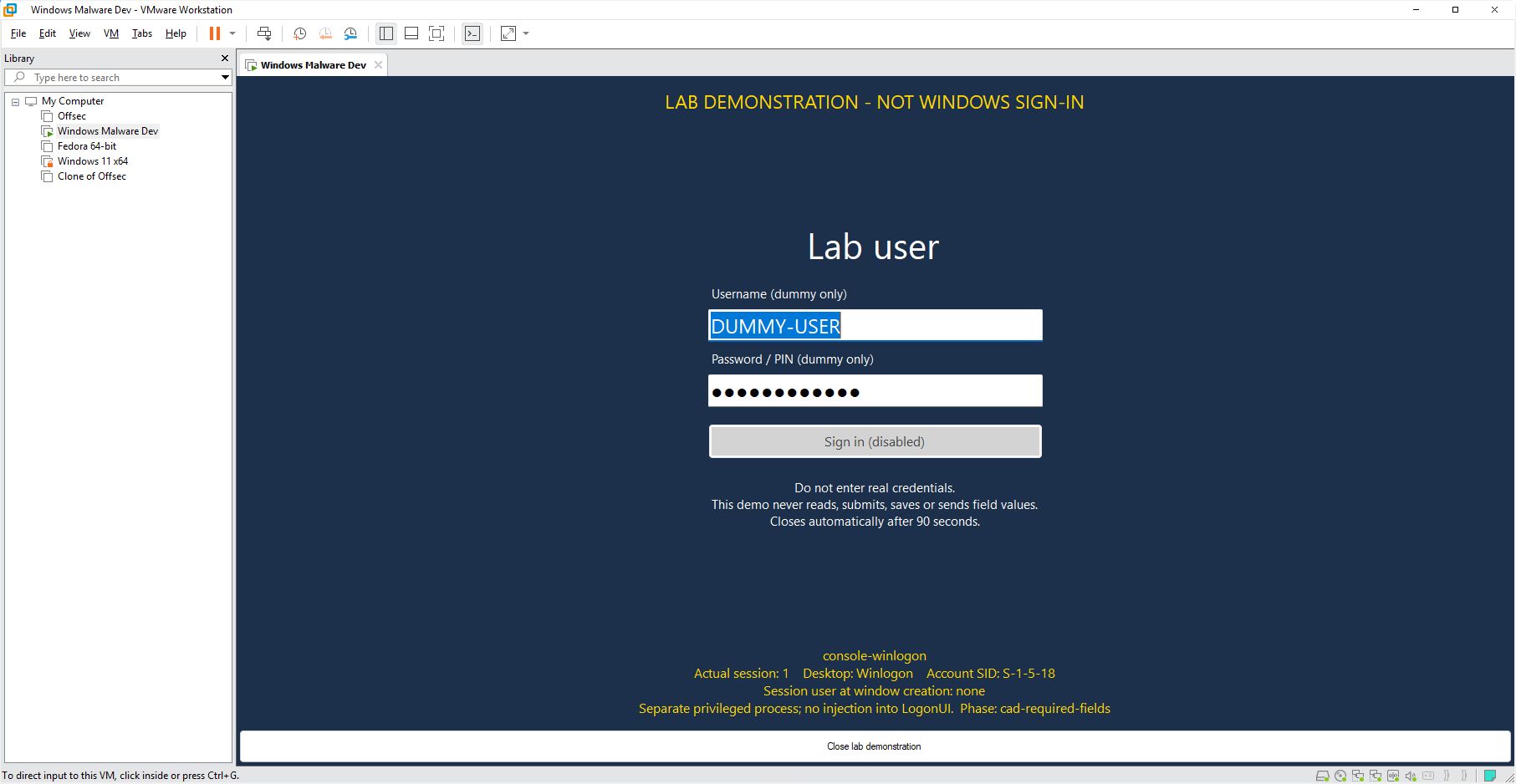
A separate SYSTEM process displaying its own form before sign-in, with CAD required. The footer shows its actual desktop, account SID, and session user state. Click for the full-resolution image.
The requirement didn’t prevent our SYSTEM process from displaying this form. Microsoft’s desktop documentation explicitly includes LocalSystem among the accounts allowed access there.
Does a Hello PIN change the answer
It changes an important part of the argument. Windows Hello for Business uses an asymmetric key associated with the device. The PIN authorizes use of the private key; the legitimate authentication flow doesn’t send the PIN to the identity provider. With a TPM-backed credential, hardware protection and anti-hammering also help protect the key. Microsoft’s Hello FAQ explains the design.
In Hello for Business, device possession plus the PIN already supplies two factors. Biometrics aren’t needed to make that combination multifactor authentication.
For a unique Hello PIN, theft is much less useful away from the device than theft of an account password. That is a reasonable argument for revisiting the Ctrl+Alt+Delete requirement. But the value someone chooses may also be a password or PIN they use elsewhere. Hello PINs can include letters and symbols where policy permits, so a familiar account password could become a Hello PIN too.
A counterfeit prompt could then capture that password in plain text. Even a numeric PIN might be reused on another device or service. This is the reuse risk described by the NCSC.
I wouldn’t count on Enhanced Phishing Protection to catch a PIN typed into a fake sign-in prompt. It can warn about unsafe use of the work or school password used to sign in, but Microsoft says it doesn’t alert or send Defender for Endpoint events when the user signs in with a Hello for Business PIN or biometric.
If you’re relying on TPM protection, check that Use a hardware security device is enabled. Without that policy, Hello for Business can provision software-protected credentials when the TPM is unavailable or unusable.
There’s also a difference between a Hello for Business PIN and a local-account PIN. Microsoft’s overview explains that local-account convenience sign-in doesn’t use the asymmetric authentication described above.
Face and fingerprint
Biometrics reduce how often people type a secret. When a sensor can’t be used, the normal fallback is the Hello PIN, which still uses the Hello credential. Recovering a forgotten PIN is a separate process; Microsoft’s nondestructive reset flow uses Entra authentication and MFA.
Enhanced Sign-in Security adds hardware and virtualization-based security (VBS) protections for biometric processing and communication. A working camera or fingerprint reader alone doesn’t mean that ESS is enabled.
Microsoft’s Windows passwordless experience has exceptions, including initial sign-in, local accounts, and Other user. A missing password tile doesn’t mean users will never be asked for a password.
My recommendation
For now, I would keep the Ctrl+Alt+Delete requirement on your fleet. ASD’s hardening guidance still supports it, and I want users to expect that step before entering their credentials. On a fleet configured that way, an unexpected prompt before the keypress, or a sign-in flow that doesn’t behave normally, is a reason to stop and investigate.
We also confirmed the thing I was most curious about: a separate program could still display its own full-screen sign-in-style form before anyone signed in on the Windows 11 build we tested. Our test already had SYSTEM access, but we didn’t need to inject into Winlogon or LogonUI to put it there.
Our SYSTEM form appeared with the requirement enabled. I wouldn’t present the keypress as a guarantee that every window on the secure desktop is genuine.
The inspections below show desktop access restrictions and the software SAS client code. They don’t compare the two policy settings or test Hello sign-in; the Hello discussion comes from Microsoft’s documentation.
If you want to inspect it
Honestly, this is a little stunty. We’re just poking around to understand how things work, rather than making any big discovery or settling the policy question. So I popped it down below the final recommendation. It’s just boring without the tools :)
For the sign-in components, Microsoft’s architecture documentation explains how Winlogon, LogonUI, credential providers, and LSA fit together. The sample provider’s GetSerialization method shows how a password credential is packed and returned to Windows for submission.
For the optional lab, use Windows 11 x64 and a normal, non-elevated PowerShell session. Install Visual Studio or Build Tools with the Desktop development with C++ workload and a Windows SDK. The disassembly also needs the current WinDbg package.
Download and extract the source ZIP, then open PowerShell in the extracted folder. The README, C++ probe, and runner are also available separately.
Inspect the desktop objects
.\Invoke-Inspection.ps1
The script builds the little probe and writes results into _output. It queries desktop access and selected registry values without changing policy or switching desktops.
Windows desktops are securable objects containing windows, menus, and hooks. Ordinary applications normally use WinSta0\Default; the Winlogon desktop is restricted. Microsoft’s desktop documentation describes the separation, including the constraints on messages and hooks and the switch associated with Ctrl+Alt+Delete. These objects are separate from the virtual desktops in Task View.
The probe uses GetUserObjectInformationW to read the names of its window station, thread desktop, and current input desktop. The recorded run returned:
process.windowstation.name=WinSta0
thread.desktop.name=Default
input.desktop.name=Default
It then asks to open Winlogon:
HDESK desktop = OpenDesktopW(
    L"Winlogon", 0, FALSE, DESKTOP_READOBJECTS);

if (!desktop) {
    const DWORD error = GetLastError();
    std::wprintf(L"OpenDesktopW failed: %lu\n", error);
} else {
    CloseDesktop(desktop);
}
The full probe separately requests DESKTOP_READOBJECTS and DESKTOP_SWITCHDESKTOP. Windows checks the requested rights against the desktop’s security descriptor. Both requests failed:
winlogon.readobjects.open=failed error=5 access=0x00000001
winlogon.switchright.open=failed error=5 access=0x00000100
Error 5 is access denied. This non-elevated probe, on a system reporting build 26300.9711, couldn’t obtain either right. That’s a concrete example of the desktop access restriction described in the documentation.
Inspect the software SAS path
Software has a supported way to request a SAS through SendSAS. It is restricted to callers meeting the service or UIAccess requirements, subject to policy. UIAccess applications also have signing and protected-install-location requirements.
The separate SoftwareSASGeneration policy controls the allowed categories. One detail worth noticing: Disabled or Not configured still permits accessibility applications running on the secure desktop. That differs from enabling the policy and choosing None.
To inspect the client DLL:
.\Invoke-Inspection.ps1 -WithDebugger
The runner launches the probe under CDB. The probe loads the system sas.dll and breaks in its own process; it never calls SendSAS. CDB downloads public symbols, runs the following inspection, and detaches:
.reload /f sas.dll
lmvm sas
x sas!*SAS*
uf sas!SendSAS
uf sas!WlSecureDesktopSimulateSAS
uf sas!WlSecureDesktoppRpcClientInit
lmvm identifies the DLL and symbols; uf disassembles a function. In sas.dll version 10.0.26100.3323, the AsUser = TRUE branch of SendSAS leads to a helper containing RPC client calls:
sas!SendSAS
    -> sas!WlSecureDesktopSimulateSAS
        -> sas!WlSecureDesktoppRpcClientInit
        -> imported NdrClientCall3
The initialization helper also calls RpcBindingFromStringBindingW and RpcBindingSetAuthInfoExW. This disassembly shows the client code; we didn’t execute a SAS or inspect the server-side authorization. Internal helper names may change between builds.
For me, this makes the documentation a little less abstract. Our ordinary process couldn’t open the Winlogon desktop, and the disassembly gave us a starting point for following the software SAS path. That doesn’t settle whether to require Ctrl+Alt+Delete, but it gives us something concrete to play with alongside the guidance.