windows · windbg · security
Access granted. Who changed that byte?
Your app reads a file or request and later makes a decision it shouldn’t. It doesn’t crash. You break at the decision and find that the check is doing exactly what the code says, but the value it reads is already wrong. The write that changed it happened earlier, and the current call stack doesn’t tell you where. How do you find that write and work out whether the input caused it?
We’ll use a contrived Windows program called DecisionLab. A file supplies a display name; the program initializes allowed to zero, and the file isn’t supposed to set it. Yet one input makes it print ALLOW. That changes no real permissions. We’ll record the run with WinDbg’s Time Travel Debugging (TTD) and work backwards from the result to the write that set the field.
Get set up
You’ll need Windows 11 x64, current WinDbg, and Visual Studio 2022 C++ Build Tools with the Desktop development with C++ workload. The compiler’s private PDB lets WinDbg connect machine instructions to our function names, fields and local variables.
Download the source ZIP and extract it to C:\Lab\DecisionLab. Open PowerShell there:
Set-Location C:\Lab\DecisionLab
.\Build-Lab.ps1
.\New-LabInputs.ps1 -OutputDirectory C:\Lab\DecisionLabInputs
The second script creates three small binary files in a separate input directory. Its source is included. The README covers downloaded-script execution policy and optional build paths.
Keep bin\DecisionLab.exe and bin\DecisionLab.pdb together. Don’t rebuild halfway through investigating a recording: the recorded binary, private symbols and source need to agree. Ordinary builds and runs need no elevation. Start WinDbg with Run as administrator for recording, which Microsoft lists as a TTD requirement.
Start with the wrong result
Before recording anything, establish which input produces the bad decision. Run the vulnerable mode with the two generated files:
.\bin\DecisionLab.exe vulnerable C:\Lab\DecisionLabInputs\normal-name.bin
.\bin\DecisionLab.exe vulnerable C:\Lab\DecisionLabInputs\crafted-name.bin
The ordinary file contains guest and ends with after.allowed=0 and decision=DENY. The crafted file is accepted too, but ends differently:
input_bytes=36
input_accepted=yes
name=AAAAAAAAAAAAAAAAAAAAAAAAAAAAAAAA
after.allowed=1
decision=ALLOW (simulation only)
result=completed
The name= line prints at most 32 bytes. The As fill that field; they aren’t what makes the decision change. The file has four more bytes, 01 00 00 00. We chose them to make the whole-object copy set allowed to one. If those four bytes were zero, the same copy would leave allowed at zero. Neither run crashes. The trace below shows the instruction that moves the chosen byte from the file buffer into the field.
Record the run that contains the write
TTD can only take us backwards through instructions it recorded. We need the file read and bad write in the trace. In elevated WinDbg choose File → Start debugging → Launch executable (advanced). Set the executable to:
C:\Lab\DecisionLab\bin\DecisionLab.exe
Set its arguments to:
vulnerable C:\Lab\DecisionLabInputs\crafted-name.bin
Select Record with Time Travel Debugging, then Configure and Record to choose the recording folder. Record from launch so initialization and file loading are included. Let the process finish, open the resulting .run file if needed, and let WinDbg index it. Microsoft’s recording instructions describe the dialog.
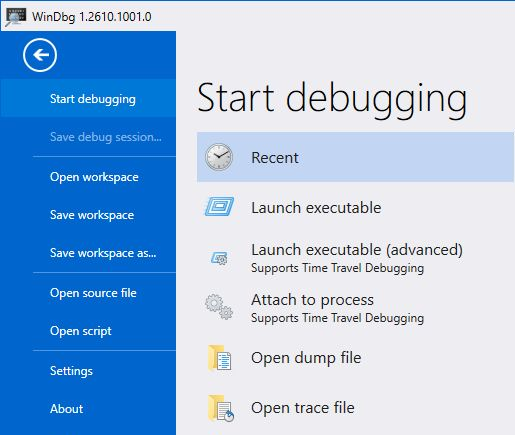
Launch executable (advanced) leads to the recording options. Click a screenshot to open it at full size.
Once indexed, the recording is a finished execution we can move through. Continuing and stepping change the current position in that execution; memory commands show values at that position. New breakpoints help us search the trace, but changing them cannot change what the program did.
Treat traces as process-memory evidence: they can contain inputs and other sensitive data.
Stop at the decision
In your own program, start at the function that makes the wrong choice. Here that function is ReportDecision. Open WinDbg’s command window; these are debugger commands, not PowerShell commands:
.symfix C:\Lab\Symbols
.sympath+ C:\Lab\DecisionLab\bin
.reload /f DecisionLab.exe
!tt 0
bu DecisionLab!ReportDecision
!tt 100
g-
.symfix configures Microsoft’s public symbol server and a cache; .sympath+ adds our private PDB directory. The latter describes this sample’s fields and locals. Windows symbols will also be useful for the optional heap inspection.
!tt 0 moves to the beginning of the recording. bu places a breakpoint at ReportDecision. !tt 100 moves to the end, and g- continues backwards until a stopping event, here the last call to that function. Microsoft documents these replay navigation commands.
We seek back to the decision before dereferencing the session pointer because the application later frees that object. At the function entry, inspect the live session and its caller:
dt DecisionLab!Session poi(DecisionLab!gSession)
k 3
gSession is a global pointer, not the session itself. poi reads the pointer stored there; dt uses its value as the address of a Session. k shows the call stack.
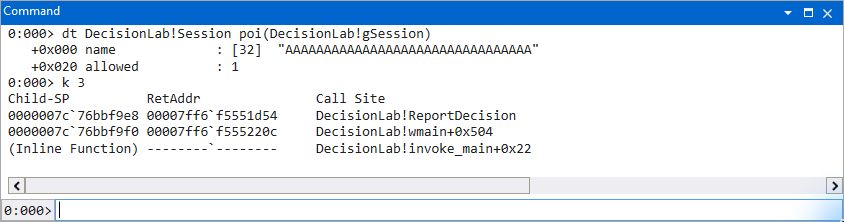
The decision consumes allowed = 1. The field dump establishes the bad state, not its origin.
The relevant part of the decision function is ordinary C++:
session->allowed == 1 ? "ALLOW" : "DENY"
The comparison explains the result, but not how allowed became one.
Follow the value back to its writer
The field used by the wrong decision is our search target. The dump puts allowed at offset 0x20 from the session address. Save its address in a debugger temporary:
r $t0 = poi(DecisionLab!gSession) + 0x20
dd @$t0 L1
$t0 belongs to the debugger; setting it doesn’t alter the program. dd ... L1 displays one four-byte value. In this recording the field is at 0x254030547f0. Yours will differ, so calculate it from your session rather than copying the address.
Replace our function breakpoint with a write breakpoint on the first byte of that field:
bc *
ba w1 @$t0
g-
k 3
dd @$t0 L1
bc * clears the breakpoints in this lab session. ba w1 watches a write to one byte. We use the first byte to isolate this input’s zero-to-one transition; the complete field is still four bytes wide. A write breakpoint watches accesses, including writes that leave a byte unchanged.
In live debugging we’d need to set the watchpoint before the write and reproduce the problem. Here we set it after observing the bad state and search backwards through the existing recording. Raymond Chen described this workflow when TTD arrived; it is also covered by Microsoft’s TTD walkthrough.
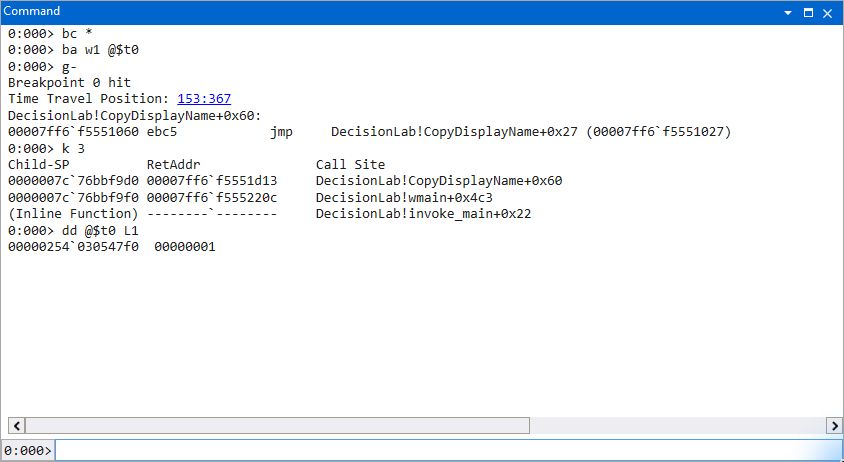
The earlier write is in CopyDisplayName, called by wmain. At this stop the field is already one.
The watchpoint names a function, but the current instruction is a jump following the store. The reverse stop is on the after side of the write. Inspect both sides before assigning the cause to a particular instruction.
Catch the instruction that changes it
Select instruction stepping, then go back one instruction:
l-t
t-
dd @$t0 L1
u @rip L1
r rax,rcx
dv /t
l-t selects assembly stepping; in source mode a step can cover a C++ line containing several instructions. Microsoft’s t reference explains that distinction. t- traces backwards, u disassembles, and dv /t displays the current function’s locals with their types.
One step back gives us zero at the field address and this store about to execute:
mov byte ptr [rax],cl
RAX holds the destination address. CL, the low byte of RCX, holds one. The instruction copies that byte into the memory at RAX.
The locals make the source-level connection. i is 0x20 (32) and length is 0x24 (36). Inspect the input byte and this iteration’s destination, then execute one recorded instruction forwards:
dx i
dx input[i]
dx destination + i
t
dd @$t0 L1
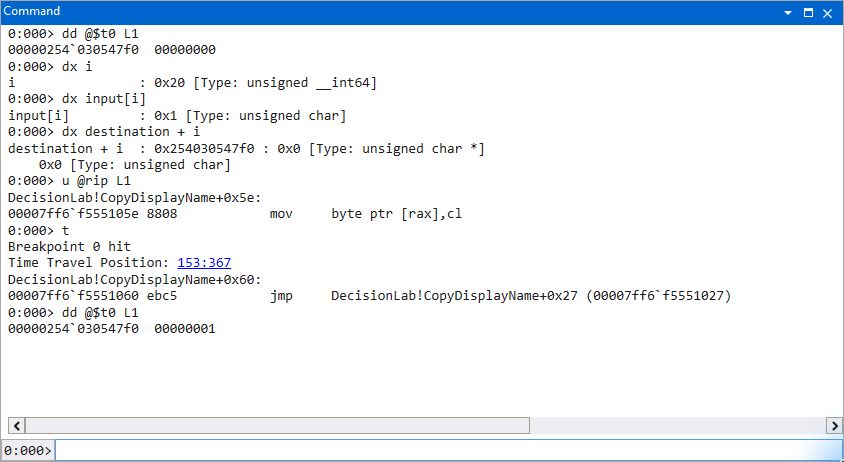
Before the store, the decision field is zero and input[32] is one. After one forward instruction, the field is one.
Who changed the byte? CopyDisplayName, running inside the application. At loop index 32, its mov byte ptr [rax],cl instruction writes 0x01 into the first byte of Session::allowed. The field is zero immediately before that instruction and one immediately after it. In this trace the two positions are 153:366 and 153:367; they are positions inside the recording, not source lines or wall-clock timestamps.
Connect that write to the file
Finding the writer does not yet tell us where its data came from. To check the source buffer, step back once more:
t-
dx input == DecisionLab!gInput
du poi(DecisionLab!gInputPath)
dq DecisionLab!gInputLength L1
db poi(DecisionLab!gInput) L24
The sample exposes three globals for this part of the investigation: the loaded file buffer, its byte count and its original Unicode path. They remain valid through the decision. The pointer comparison returned true: this helper is copying the buffer that the file loader published. du displays the path as Unicode text; dq displays the x64 length, and db displays individual bytes. WinDbg’s default radix is hexadecimal, so L24 requests 36 bytes.
Those globals make the file connection easy to check in this lab. An unfamiliar application may give you only the writer’s input pointer and call stack; you’d have to follow those further before naming the input source.
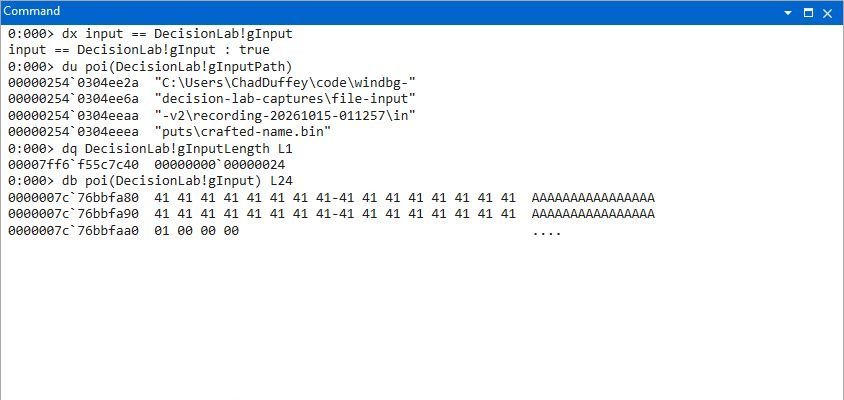
The source pointer matches gInput. The loaded file contains 32 A bytes followed by 01 00 00 00.
The loader reads the named file with CreateFileW and ReadFile. The session is a separate allocation, laid out as:
struct Session {
    char name[32];
    std::uint32_t allowed;
};
This build asserts that allowed begins at byte 32 and the complete object occupies 36 bytes. The name-copy helper doesn’t enforce the name’s capacity:
void CopyDisplayName(Session* session, const unsigned char* input,
                     std::size_t length) {
    auto* destination = reinterpret_cast<unsigned char*>(session);
    for (std::size_t i = 0; i < length; ++i) {
        destination[i] = input[i];
    }
}
That cast points at the start of Session, not just name. The 36-byte file fills all 36 bytes of the allocation: the first 32 become the name, and the last four become allowed. On this little-endian build, 01 00 00 00 makes it one. Nothing is written outside the allocation. The mistake is copying a name file into the entire object.
Here’s the part of the input generator that creates the file:
$bytes = [byte[]]::new(36)
for ($i = 0; $i -lt 32; $i++) { $bytes[$i] = 0x41 }
$bytes[32] = 0x01
[IO.File]::WriteAllBytes('C:\Lab\DecisionLabInputs\crafted-name.bin', $bytes)
WriteAllBytes preserves the zero bytes at the end. This is a binary input, not a text name with a newline appended.
The loader rejects files longer than 36 bytes. That keeps this lab’s copy inside the Session allocation, but still lets file bytes determine a field that should be set only by application logic.
Test the repair against the same file
The trace puts the fault at the name-copy boundary. The checked helper rejects a length that leaves no room for a terminating zero in name:
if (length >= sizeof(session->name)) {
    return false;
}
It performs that check before copying. With this string policy, 31 name bytes fit; 32 do not. Run it against the same crafted file, rather than replacing the failure-triggering input with a shorter name:
.\bin\DecisionLab.exe fixed C:\Lab\DecisionLabInputs\crafted-name.bin
The observed result was:
input_bytes=36
input_accepted=no
name=
after.allowed=0
decision=DENY (simulation only)
result=completed
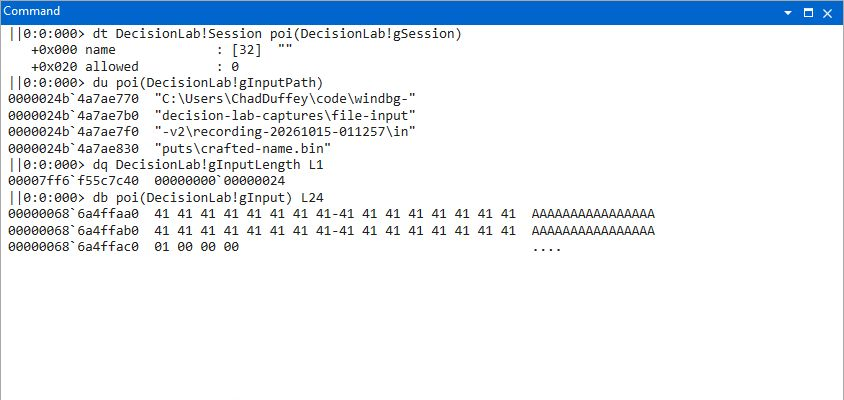
A saved live stop in the fixed version: the same 36 input bytes are loaded, but the name is empty and allowed remains zero.
For this control, launch fixed with that file in a fresh live WinDbg session, leave Record with Time Travel Debugging unchecked, and use bu DecisionLab!ReportDecision followed by g. The image above reopens a full memory dump saved at that stop.
The input directory also contains a control with a different trailing value:
.\bin\DecisionLab.exe vulnerable C:\Lab\DecisionLabInputs\non-grant-name.bin
It changes the first trailing byte to 02. The vulnerable copy still overwrites allowed, now with two, but the decision is DENY because this sample checks for exactly one. The chosen value matters; a long input alone doesn’t explain the particular grant.
The repair belongs at the copy boundary. Resetting allowed afterwards would hide this result while leaving the faulty helper able to overwrite neighbouring fields.
What PageHeap sees
PageHeap can catch a write that crosses an allocation boundary. This copy stays inside its 36-byte allocation, so PageHeap has no out-of-allocation write to catch. The optional comparison needs the Windows SDK’s Debugging Tools for Windows, which includes GFlags. Microsoft’s PageHeap documentation explains its relationship to standard heap verification.
Enable full PageHeap for newly launched instances in elevated PowerShell:
$gflags = 'C:\Program Files (x86)\Windows Kits\10\Debuggers\x64\gflags.exe'
& $gflags /p /enable DecisionLab.exe /full
& $gflags /p
Launch the vulnerable version with the crafted file in a fresh live WinDbg session, with recording unchecked. Use the earlier symbol setup, break at ReportDecision, and inspect:
dt DecisionLab!Session poi(DecisionLab!gSession)
!ext.heap -p -a poi(DecisionLab!gSession)
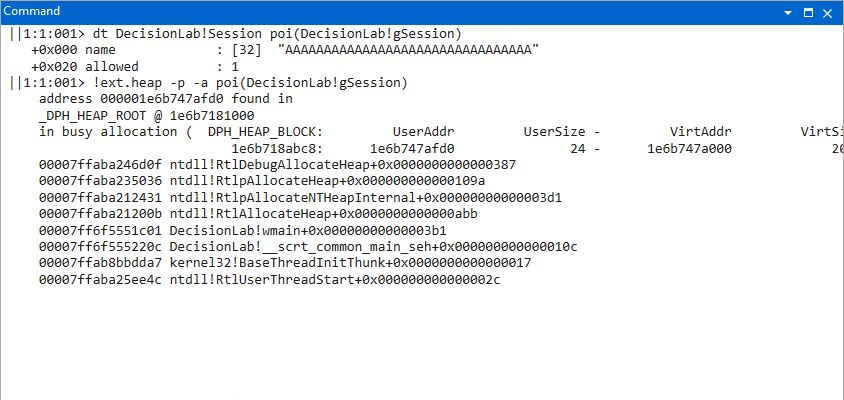
The saved PageHeap stop has allowed = 1 inside a user allocation of 0x24 (36) bytes. Continuing let this run finish with ALLOW.
The qualified !ext.heap selects the PageHeap lookup in this WinDbg build; !heap -p displays a notice directing us to it. The lookup needs Windows symbols as well as our private PDB.
For a positive control, the separate boundary mode allocates 32 bytes and writes the first byte beyond them. Launch DecisionLab.exe boundary under live WinDbg with PageHeap still enabled. At the initial stop:
sxe av
g
.exr -1
u @rip L2
r rax,rcx
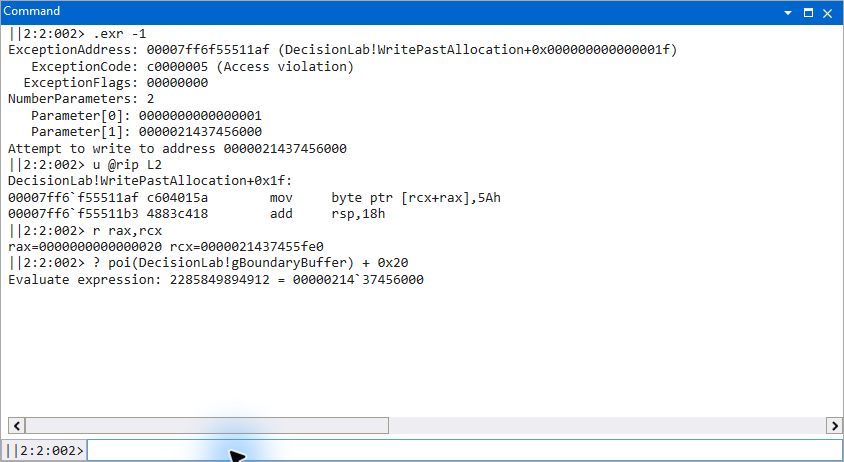
The separate control stops with a write access violation, c0000005, at the instruction for destination[32] = 0x5a.
This control uses an allocation size that lets the guard follow the requested bytes immediately. Its buffer and the session are different allocations in different runs. These PageHeap images reopen full memory dumps saved at the live stops.
After ending the live sessions, disable the persistent setting in elevated PowerShell:
& $gflags /p /disable DecisionLab.exe
& $gflags /p
The final status check here reported No application has page heap enabled. PageHeap stopped the separate boundary control at its first write outside the allocation. The name-file copy was inside its allocation and ran through to the wrong decision.
On a real program
You may not know which input caused the bad decision. Record from launch, or at least before the input is handled. Stop where the decision reads the field, then run a write breakpoint backwards. Inspect the store, its source and its call stack, and check that the address still belongs to the same object as you move back. Compare the write with the application’s intended data flow before calling it a defect. If it is one, use the same input to test the repair.
Test environment
Recorded on Windows 11 25H2 (x64) with Visual Studio 2022 Build Tools and WinDbg. The download includes source and scripts, but not traces or memory dumps. Addresses and trace positions shown here belong to this build; use your matching symbols and calculate the field address in your own recording.